Connect Codex CLI to Coginiti
This guide shows you how to connect Codex CLI, the Codex command line tool, to your Coginiti instance through the Coginiti MCP server. Codex connects to the endpoint directly over HTTP. It needs no bridge.
To connect the Codex desktop app, see Connect Codex Desktop to Coginiti. For any other MCP client, see Connect Other AI Clients to Coginiti.
Available in Coginiti Team and Enterprise. Coginiti Pro is not supported yet.
For the full list of tools and limits, see the Coginiti MCP server reference.
For Codex’s MCP setup options and supported authentication methods, see OpenAI’s MCP documentation.
Prerequisites
- Codex CLI installed
- A user account on a Coginiti Team or Enterprise instance
- The MCP server enabled on that instance (it is on by default, see Administrator settings)
Solution
Step 1: Create an API Key
- Sign in to Coginiti.
- Click the Settings icon in the lower-left corner.
- Administrators only: click the Personal tab. Other users see their settings without tabs.
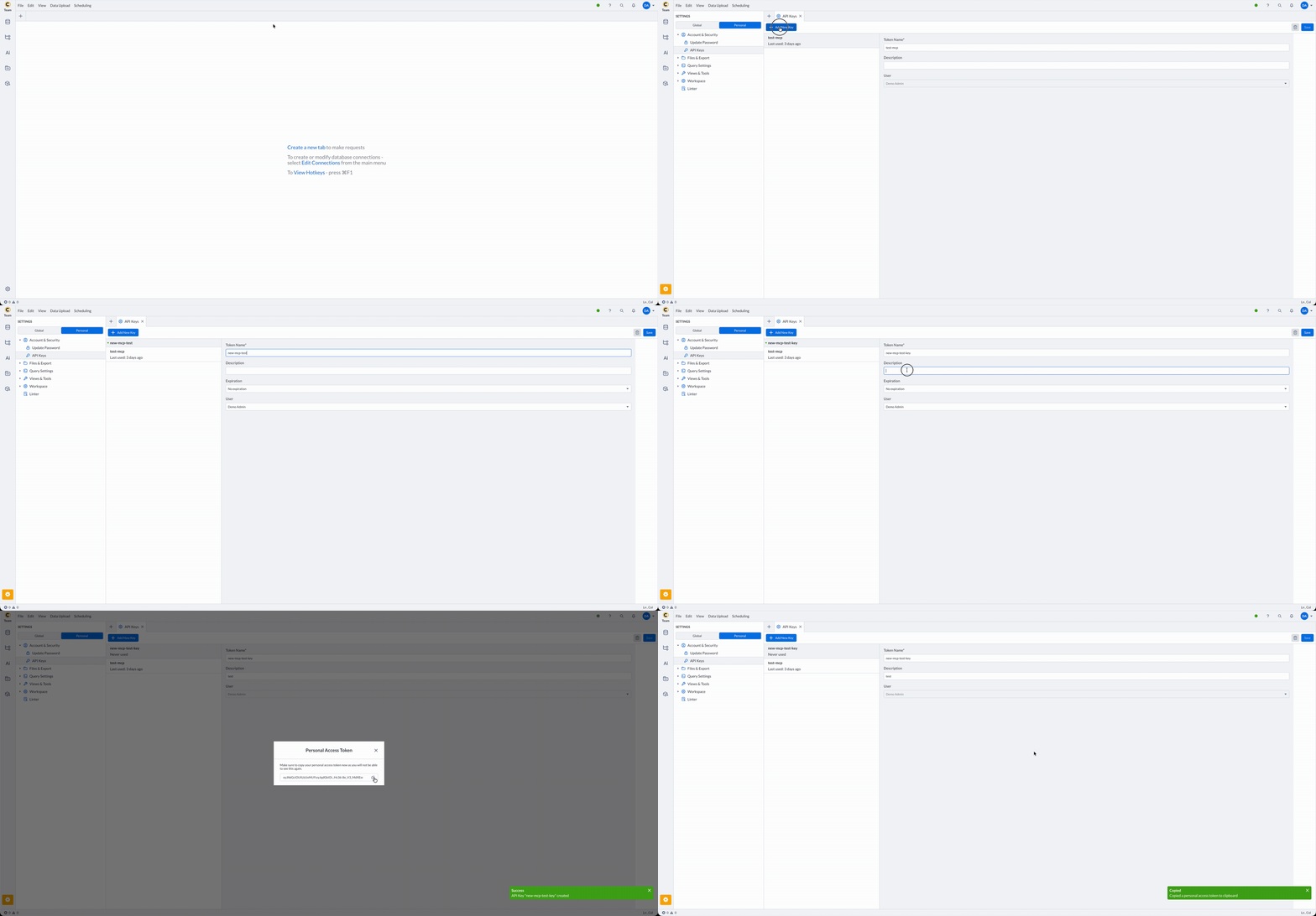
- Expand Account & Security, then click API Keys.
- Click Add New Key.
- Enter a Token Name. Optionally, add a Description.
- Select an Expiration. The default is No expiration.
- Administrators only: in User, select the user the key is created for. The key works with that user's permissions.
- Click Save and copy the key. It is shown only once.
Choose a key that does not expire if you can. For more about keys, see the API reference.
Step 2: Find Your Endpoint URL
The endpoint is your instance address followed by /api/v1/mcp, for example:
https://coginiti.example.com/api/v1/mcp
Step 3: Add the Server
Choose one of two ways.
Option A: Use the Command Line
Run these commands, with your endpoint URL and API key.
On macOS and Linux:
COGINITI_API_KEY="<your-api-key>"

codex mcp add coginiti --url https://coginiti.example.com/api/v1/mcp

cat >> ~/.codex/config.toml <<EOF

[mcp_servers.coginiti.http_headers]
Authorization = "Bearer ${COGINITI_API_KEY}"
EOF
On Windows, in PowerShell:
$env:COGINITI_API_KEY = "<your-api-key>"

codex mcp add coginiti --url https://coginiti.example.com/api/v1/mcp

Add-Content -Path "$env:USERPROFILE\.codex\config.toml" -Value @"

[mcp_servers.coginiti.http_headers]
Authorization = "Bearer $env:COGINITI_API_KEY"
"@
The first command adds the server. The last command adds your key as an Authorization header to ~/.codex/config.toml. Codex reads it from there, so you do not set the key again when you restart Codex.
The key is saved in plain text in ~/.codex/config.toml. Do not share or commit this file. The commands also save the key in your shell history. Remove those entries after you run them. In PowerShell, (Get-PSReadLineOption).HistorySavePath shows the history file. Run the commands once. A second run adds the http_headers table again, and TOML does not allow a table to be defined twice. To change the key, edit the file.
Option B: Edit the Configuration File
Open ~/.codex/config.toml and add the server by hand. On Windows, the file is %USERPROFILE%\.codex\config.toml.
[mcp_servers.coginiti]
url = "https://coginiti.example.com/api/v1/mcp"

[mcp_servers.coginiti.http_headers]
Authorization = "Bearer <your-api-key>"
| Key | Meaning |
|---|---|
url | The endpoint URL from Step 2 |
Authorization | The word Bearer, a space and your API key. Codex sends this header with every request. |
Replace the URL and <your-api-key> with your values. Save the file, then start Codex again.
The key is saved in plain text. To limit the server to one project, you can use .codex/config.toml in a trusted project instead. Do not commit a file that contains the key.
Connect to a Server with a Self-signed Certificate
Codex does not use the NODE_EXTRA_CA_CERTS setting from the other guides. Check how Codex trusts custom certificates in OpenAI’s documentation. If you can, ask your administrator for a certificate from a trusted CA.
Step 4: Check the Connection
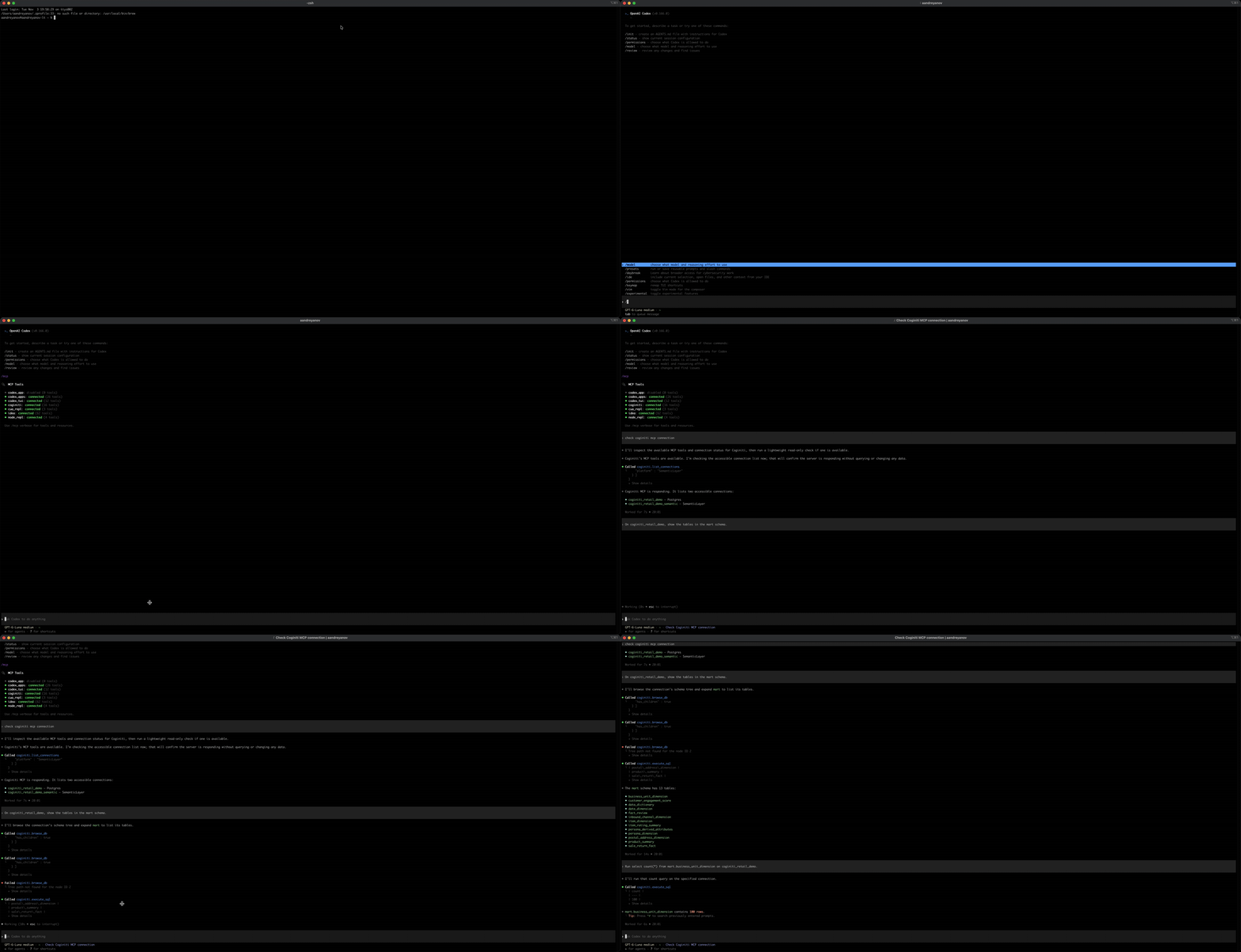
- Run
codex mcp list. Thecoginitiserver must appear. - Start
codexand run/mcp. It lists the active servers. - Ask:
List my Coginiti connections.
Codex calls list_connections and shows your connections.
If the Authorization header is missing or the key is invalid, Coginiti returns a 401 error.
Work with Coginiti in Codex
Ask in plain language. Codex picks the tool.
| You ask | Codex uses |
|---|---|
| "List my Coginiti connections." | list_connections |
| "On coginiti_retail_demo, show the tables in the mart schema." | browse_db |
"Run select count(*) from mart.business_unit_dimension on coginiti_retail_demo." | execute_sql |
"Open @Personal/retail/reports/reports_regular/daily_snapshot and explain what it calculates." | get_catalog_asset |
"Save that query as @Personal/retail/reports/channel_sales." | create_catalog_asset |
| "Search the workspace for anything about store rankings." | search |
| "From the coginiti_retail_demo_semantic layer, give me gross sales by sales channel." | execute_semantic_query |
Follow these tips:
- Name the connection exactly as
list_connectionsshows it. - Prefer a semantic layer to raw SQL when one exists. You get its governed definitions.
- Ask Codex to filter, aggregate or add a
LIMITfor large tables. See Large Results. - Give paths that start with a workspace, such as
@Personalor@Shared.
execute_sql does not limit the statement type. A statement that changes data will run. Use a connection whose database user has only the rights you want Codex to have.
Troubleshooting
Codex Returns a 401 Error
The API key is missing, revoked or expired. It also stops working while its owner is disabled, and works again when the owner is enabled. Create a new key. Replace the key in the Authorization line of config.toml, then start Codex again. Check that the value starts with Bearer followed by the key.
Codex Returns a 403 Error
Sign in to the Coginiti web UI once. Change your password if you are asked to.
Codex Returns a 404 Error or "Not Found"
- Check that the URL ends with
/api/v1/mcp. - Ask an administrator to check that Enable MCP server is on in Settings > MCP Server. When it is off, the endpoint returns "Not found".
Codex Returns "The Connection Attempt Failed" or "The Connection Timed Out"
The MCP server works, but Coginiti cannot reach the database of that connection. Tools that do not use the database, such as list_connections, still work. Open the connection in the Coginiti web UI and test it. If it fails there too, ask your database administrator to check that the database is running and reachable from the Coginiti server.
Codex Returns a Certificate Error
You may see self-signed certificate or UNABLE_TO_VERIFY_LEAF_SIGNATURE. The server uses a certificate that your machine does not trust. Ask your administrator for a certificate from a trusted CA, or follow the certificate steps in this guide.
"The Input Has N Statements, but Only One Statement Can Run per Call"
Codex sent several statements in one call. Ask it to send them one at a time.
A Result Is Incomplete
Look for truncated: true in the result. Ask Codex to narrow the query. See Large Results.
An Update or Delete Fails Because the Item Changed
Someone edited the item after Codex read it. Ask Codex to read the item again and retry.
The Web UI Shows "Concurrency Violation: Stale Data Detected"
Codex edited an item that is open in your browser. Click Reload on the message to load the changed item. Unsaved edits in that tab are discarded.
The Web UI Shows "Concurrency Violation: Some of Entities Are Under Editing"
Two saves overlapped. Nothing is stale. Save again after a moment.
The Coginiti Address Changed
Update the url in the [mcp_servers.coginiti] table of config.toml. The API key belongs to one instance. Create a new key on the new instance and update the Authorization line in config.toml too.
The Server Does Not Appear in codex mcp list
- Check the table name in
config.toml. It must be[mcp_servers.coginiti]. - Check that each table appears once. A table defined twice, for example after you ran the Option A commands twice, makes the file invalid.
- For a project file, check that the project is trusted.
For related guides, see:
Connect Claude Desktop to Coginiti
Connect Claude Code to Coginiti
Connect Codex Desktop to Coginiti
Connect Other AI Clients to Coginiti
For the full list of tools and limits, see the Coginiti MCP Server Reference.
For more information about other exciting Coginiti features visit our documentation