How to create an analytics playbook
An analytics playbook is a short document of data-backed blocks, such as KPI tiles, tables, and charts, that ends with a conclusion. This guide shows how to ask Forge or Guide to build one from your semantic layer.
You may use the coginiti-retail-tutorial project as a ready-made example.
Available here: https://github.com/coginiti-dev/coginiti-retail-tutorial
For a complete walkthrough see: Coginiti Retail Project Complete Workflow Tutorial
Prerequisites
- AI Assistant configured - see How to Configure AI Assistant
- Semantic layer access - playbooks are built from semantic layer queries, so you need a catalog project with a semantic layer and a connection that can run it. Semantic layer queries are not available in Pro. See Semantic Layer Overview for what a semantic layer is, and How to Share a Project with Semantic Layer to give users access to one.
- Familiarity with the chat panel - see Using the AI chat
To understand what a playbook is and why it works this way, see Analytics playbooks overview.
Solution
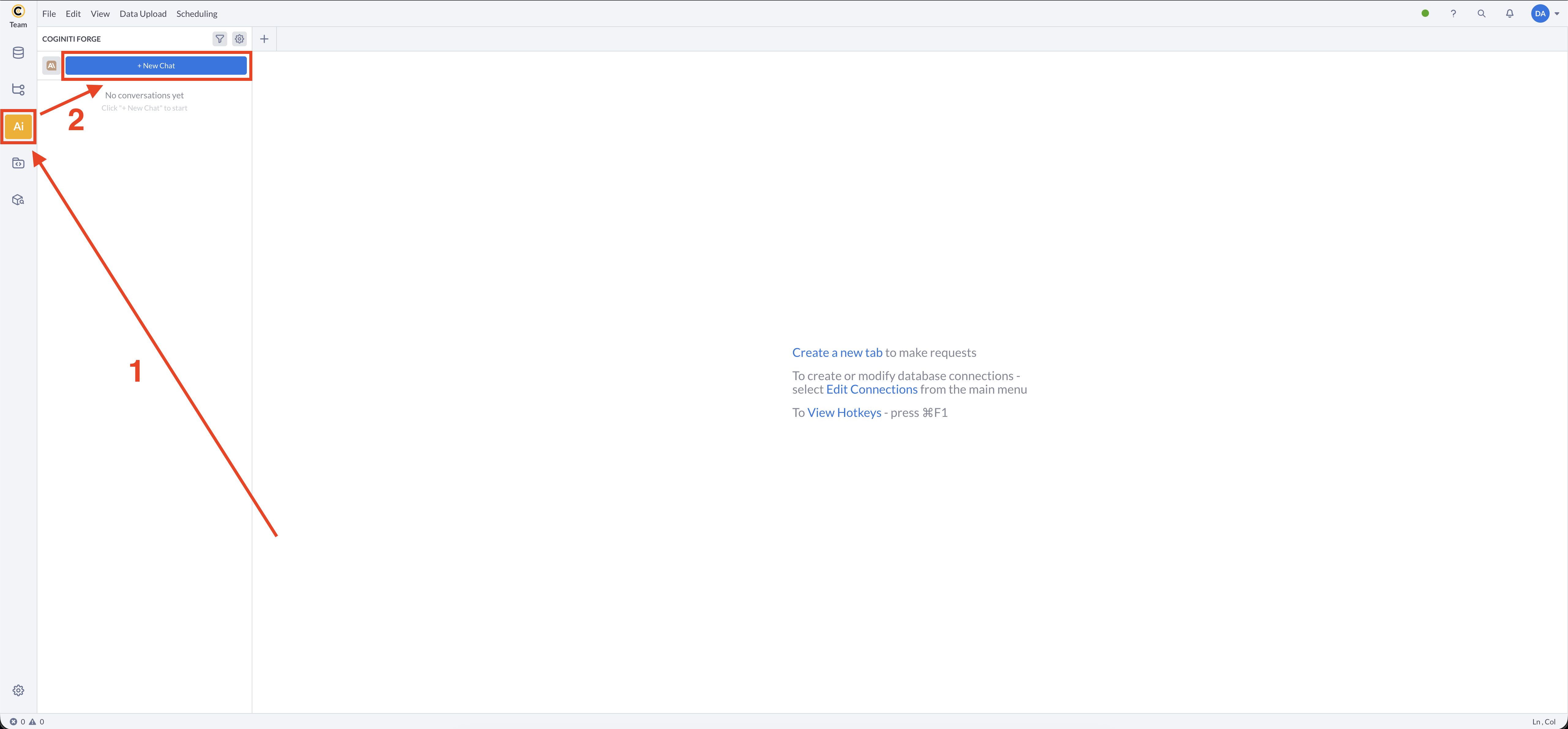
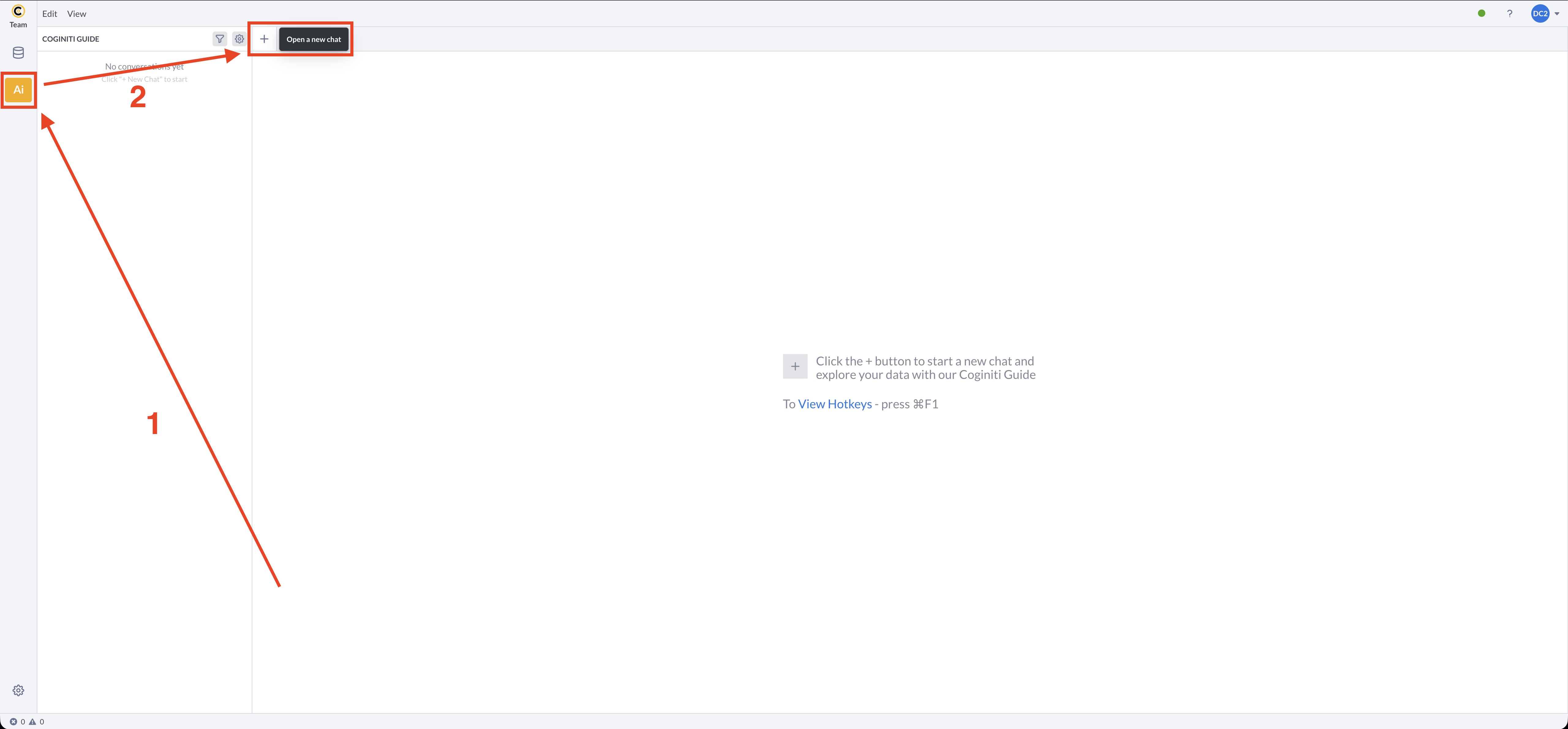
1. Start a new chat
Open the AI panel (the panel is titled with your assistant's name, Coginiti Forge or Coginiti Guide) and start a new conversation:
-
Forge - click + New Chat.
-
Guide (Consumer role) - the panel has no + New Chat button. Click + in the tab bar.
2. Turn on Playbook mode
In the message box, switch on Playbook mode (bottom left, on the same row as the Send button).
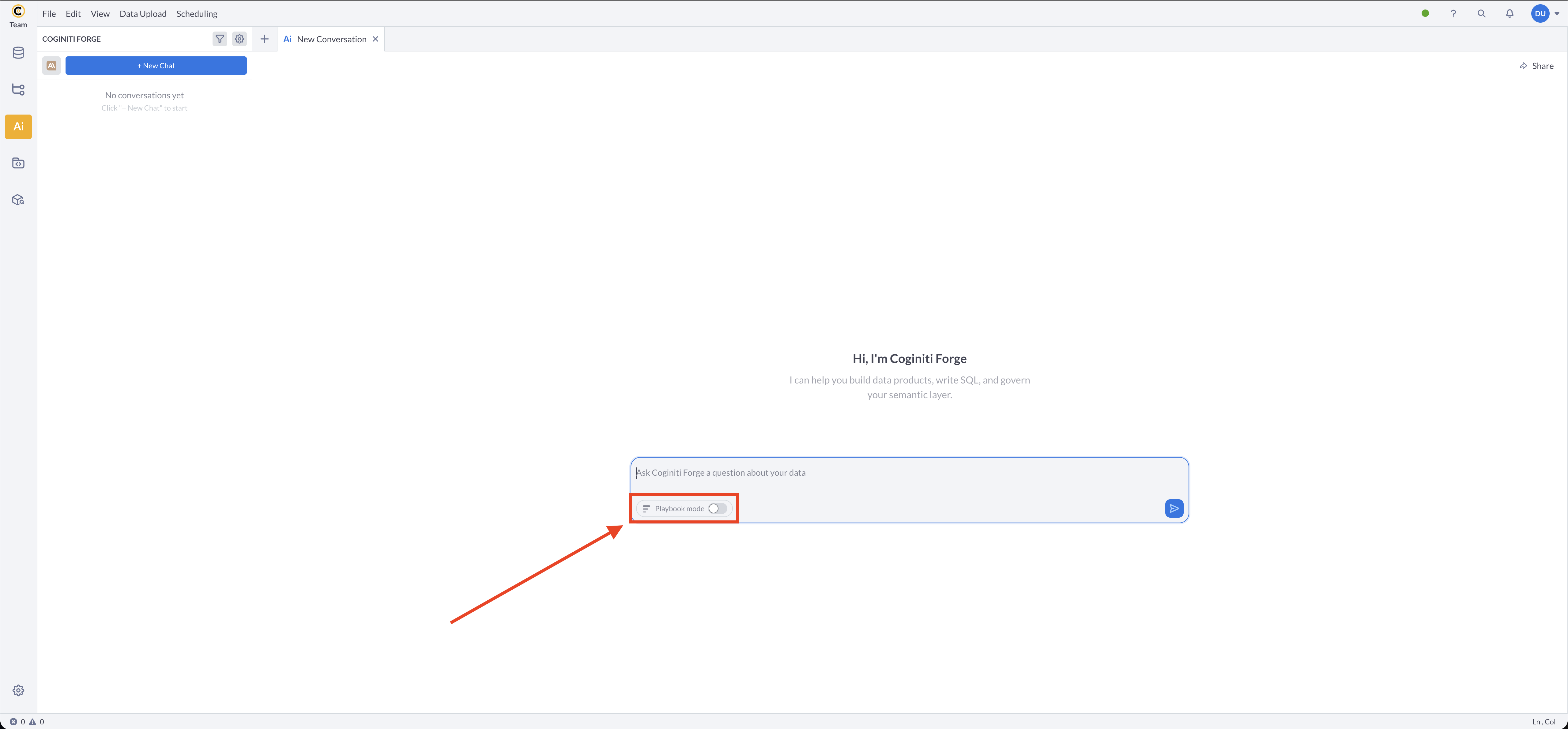
The switch is off by default and is locked while the assistant is responding. The setting belongs to the chat, so you can turn it on or off before each message.
When the switch is on, the message box shows Describe the analysis you want as a playbook.... In an empty chat, the usual welcome is replaced with Ask for an analytics playbook and four starter prompts:
- Review key metrics
- Explore a trend
- Compare performance
- Build a report
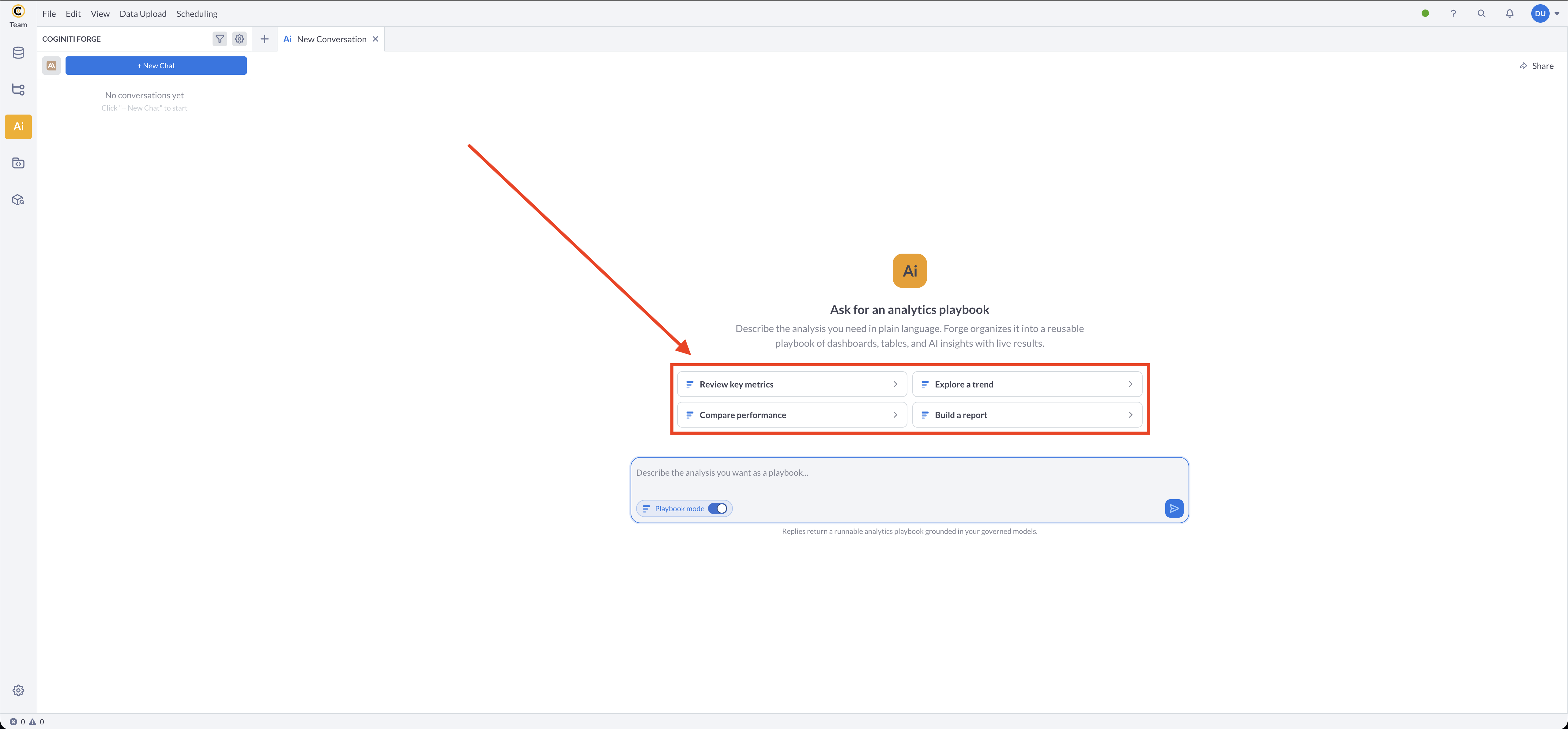
Selecting a starter prompt puts a ready-made request into the message box. It is not sent until you edit it, if you want to, and click Send.
Each starter prompt asks the assistant to help you choose the semantic layer, the metrics, and the reporting period first.
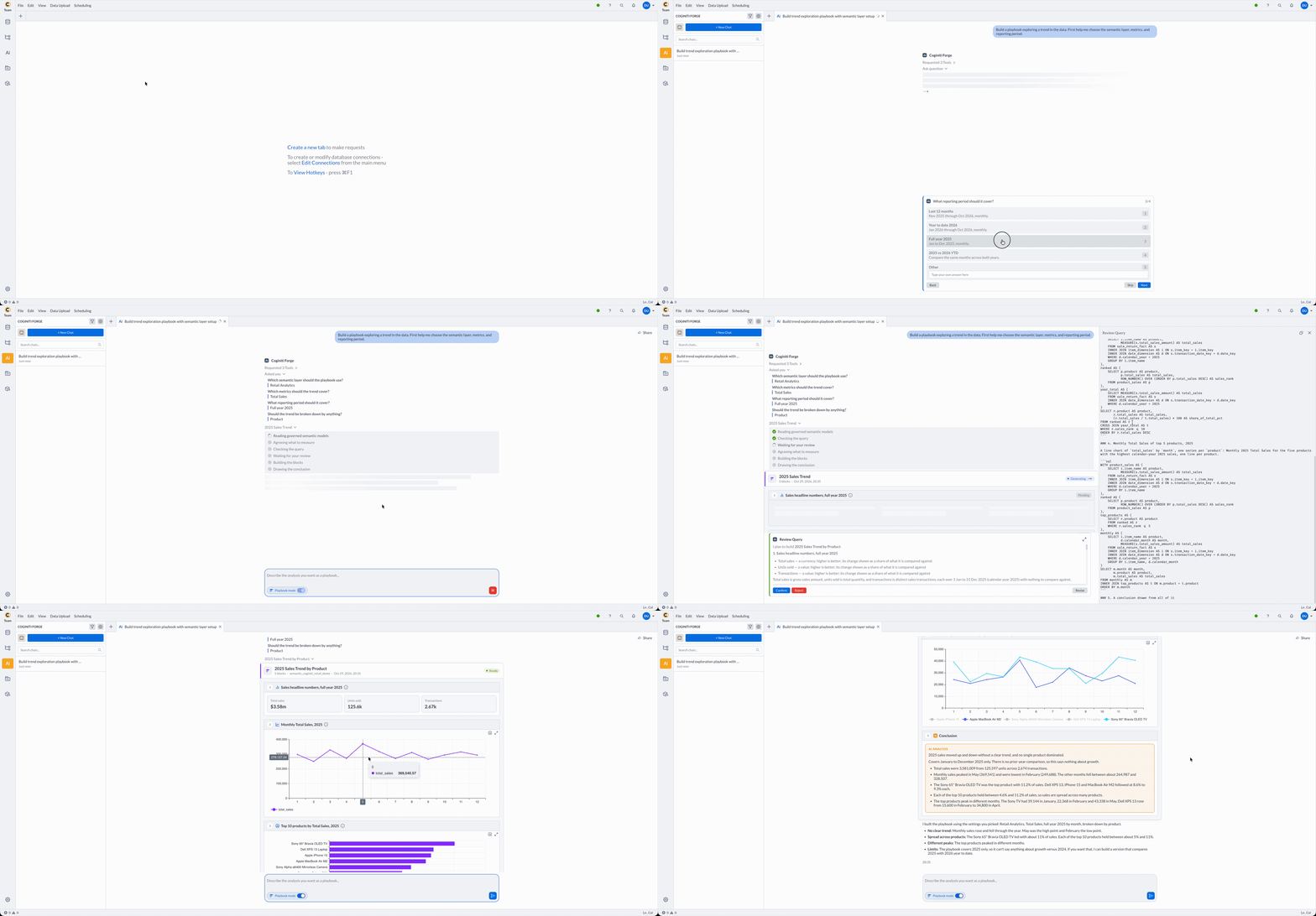
Playbook mode gives the assistant permission to build a playbook.
It does not force one. A greeting, a follow-up question, a single number, a single chart, or an unclear request is answered as a normal chat message.
The reverse also works. If you ask for a playbook by name, for example "Build a playbook...", the assistant can build one with the switch off.
The switch then turns on by itself, so your next message is read the same way.
3. Describe the analysis
Write the request in plain language. Include what you can:
- the measures to report, such as revenue or order count
- the breakdowns, such as by region or product category
- the period, such as last quarter or calendar year 2025
- what to compare against, such as the previous period
Build a playbook reviewing Q3 2026 sales: net revenue and order count against Q2,
revenue by region, and the top 10 products by revenue.
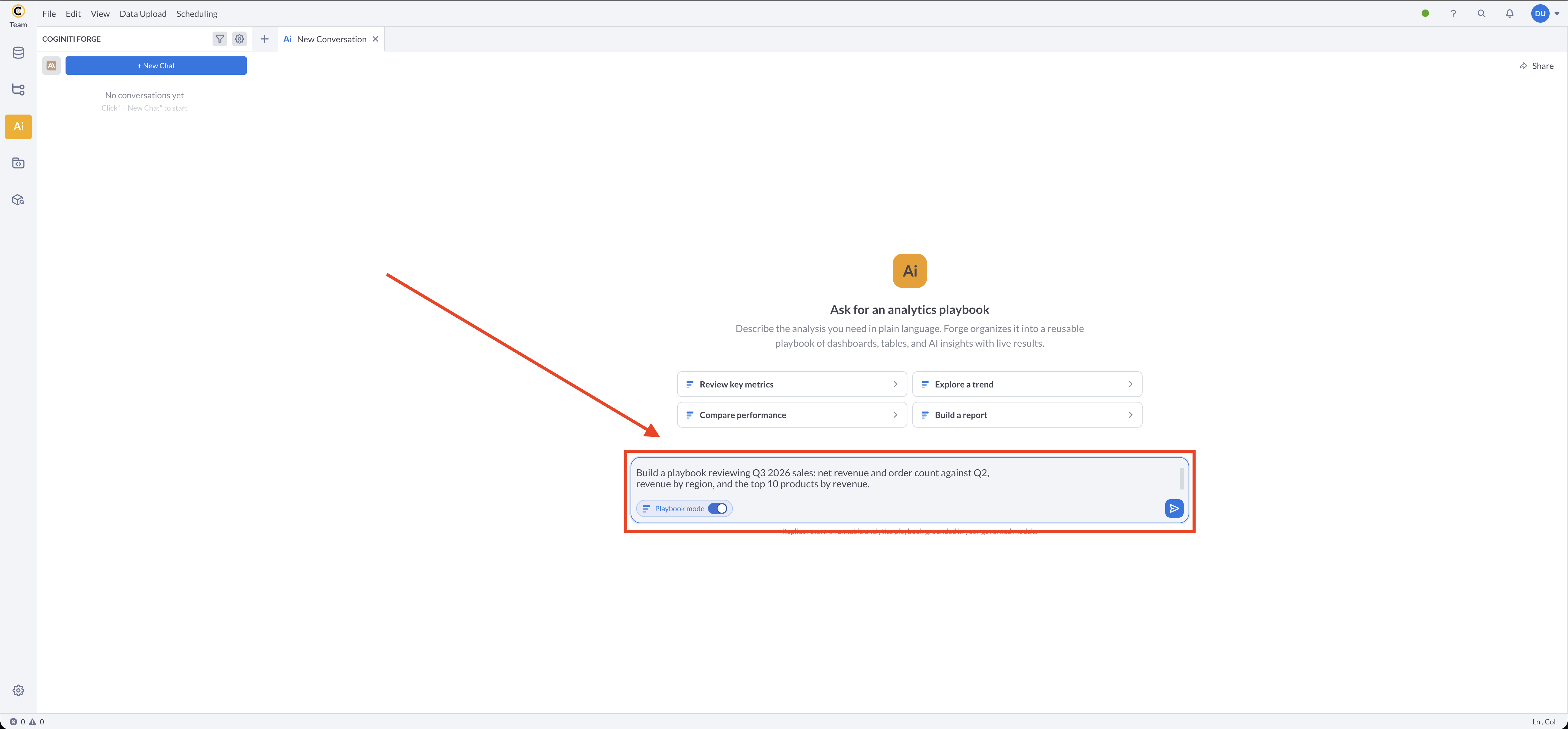
If the request names a period, every block in the playbook uses that period.
If something cannot be worked out from your semantic layer or the conversation, the assistant asks first. Answer its questions, pick an option, or choose Skip to let it decide. See Answer the agent's questions.
4. Review the plan (Forge only)
With Forge, the assistant shows you the whole plan once, before anything runs. The plan appears in a Review Query card in place of the message box. This is the only interruption during a run.
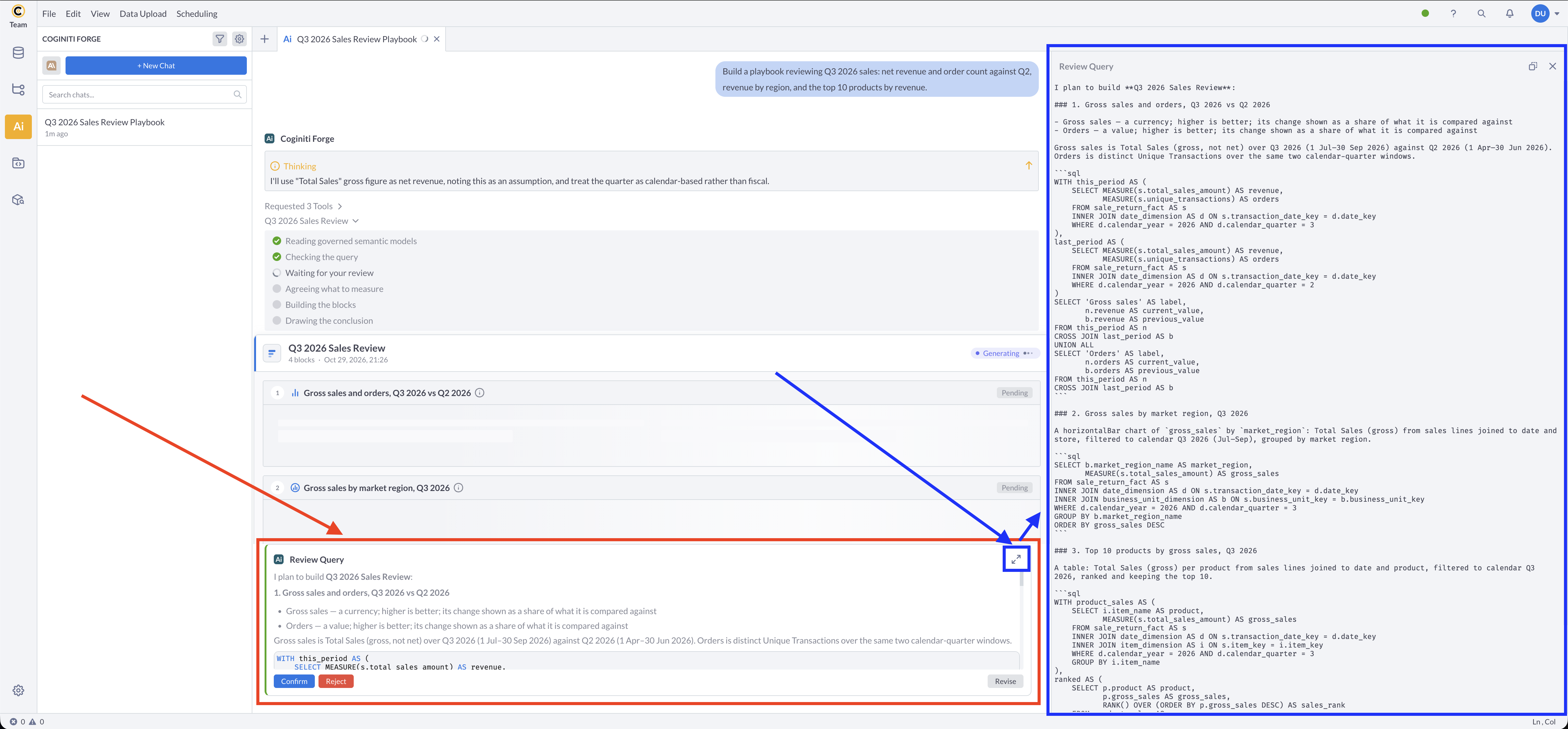
- Read each block's description and its query. Click the expand icon (View full query) to read the plan in a larger panel.
- Click Confirm to run the plan as shown.
- Click Revise, type what should change in What should change?, such as a different period, another breakdown, or fewer blocks, and click Revise again. The assistant shows the updated plan for review. Click Back to return without changes.
- Click Reject to cancel the playbook.
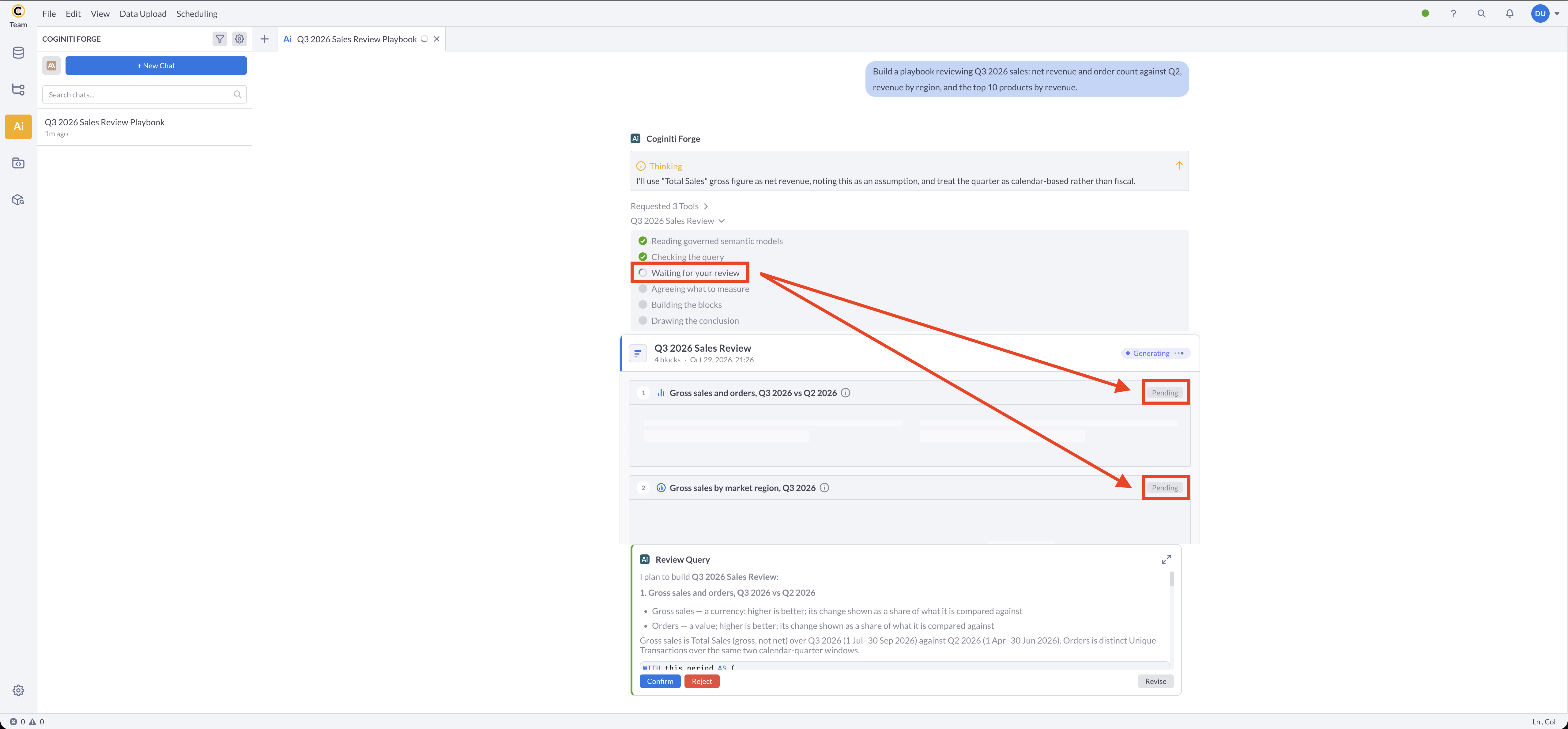
While you review, the playbook card above already lists the planned blocks with a Pending status.
With Guide, there is no plan to review. The playbook runs as soon as the assistant has what it needs, and queries are never shown. See Forge and Guide explained for the difference between the two.
5. Watch the playbook build
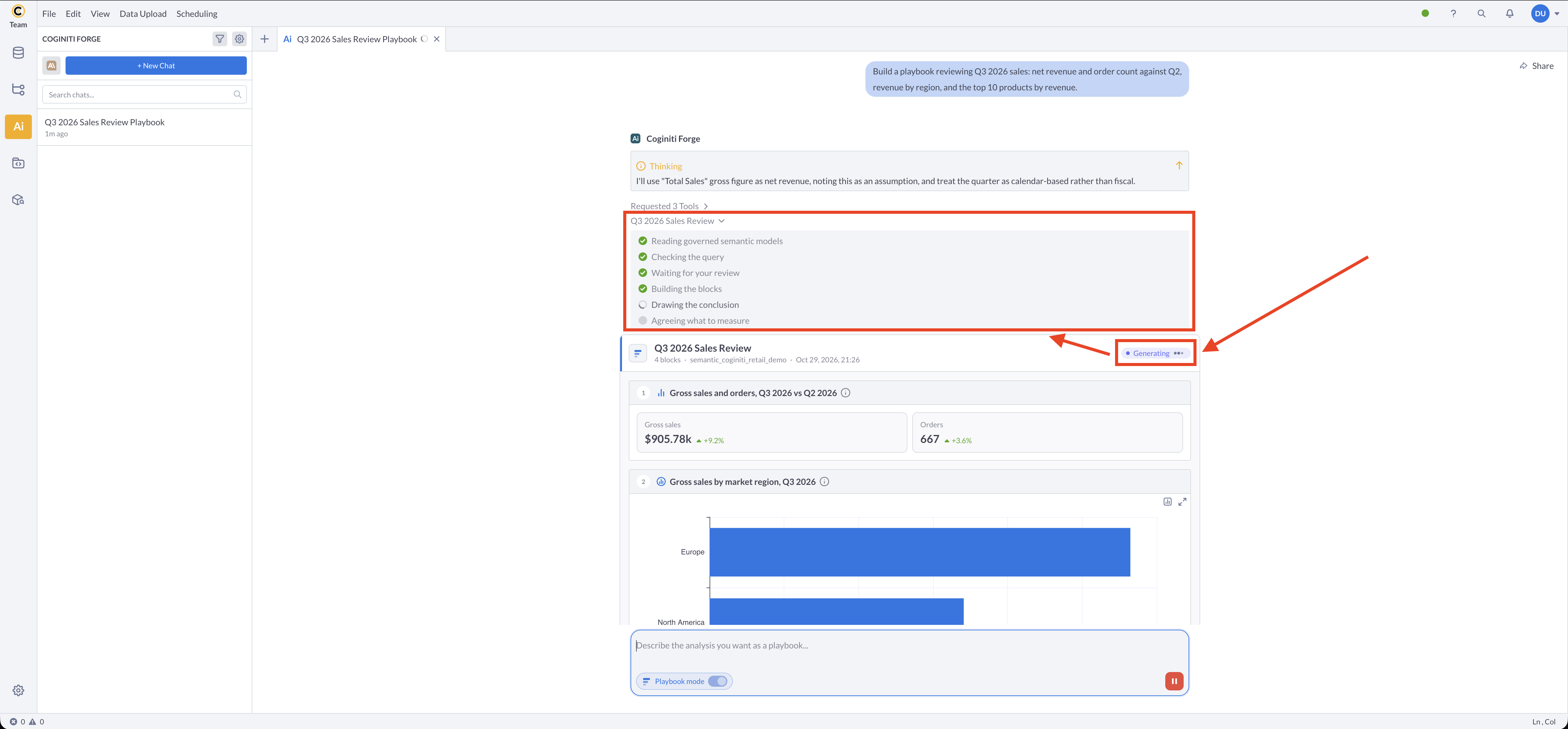
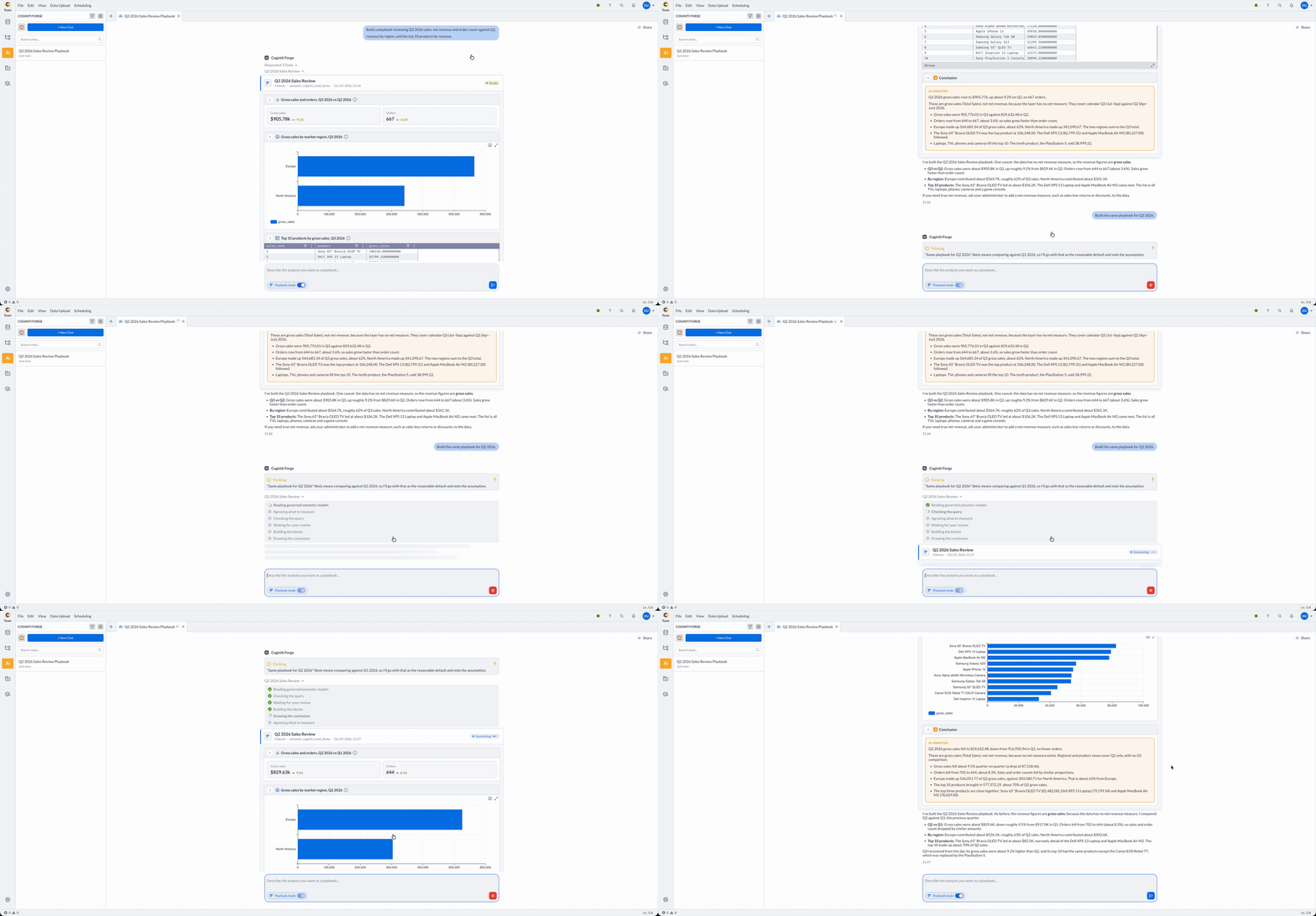
A playbook card appears in the chat with a Generating status. Above it, a checklist shows the progress of the run. The steps are:
- Reading governed semantic models
- Agreeing what to measure - only when the assistant needs to ask you something
- Checking the query
- Waiting for your review - Forge only. Guide shows this step too, but it stays unticked
- Building the blocks
- Drawing the conclusion
Completed steps are ticked, and steps a run did not need stay unticked. Each block shows Pending until its data arrives.
6. Read the finished playbook
The card header shows the playbook title, the number of blocks (the conclusion counts as a block), the semantic layer the data came from, and the date and time it ran. The status is one of:
| Status | Meaning |
|---|---|
| Generating | The playbook is still being built. |
| Ready | All blocks were built. |
| Partial | Some blocks failed, and others answered. The playbook is still worth reading. |
| Error | No block could be built, or the run failed or was denied. |
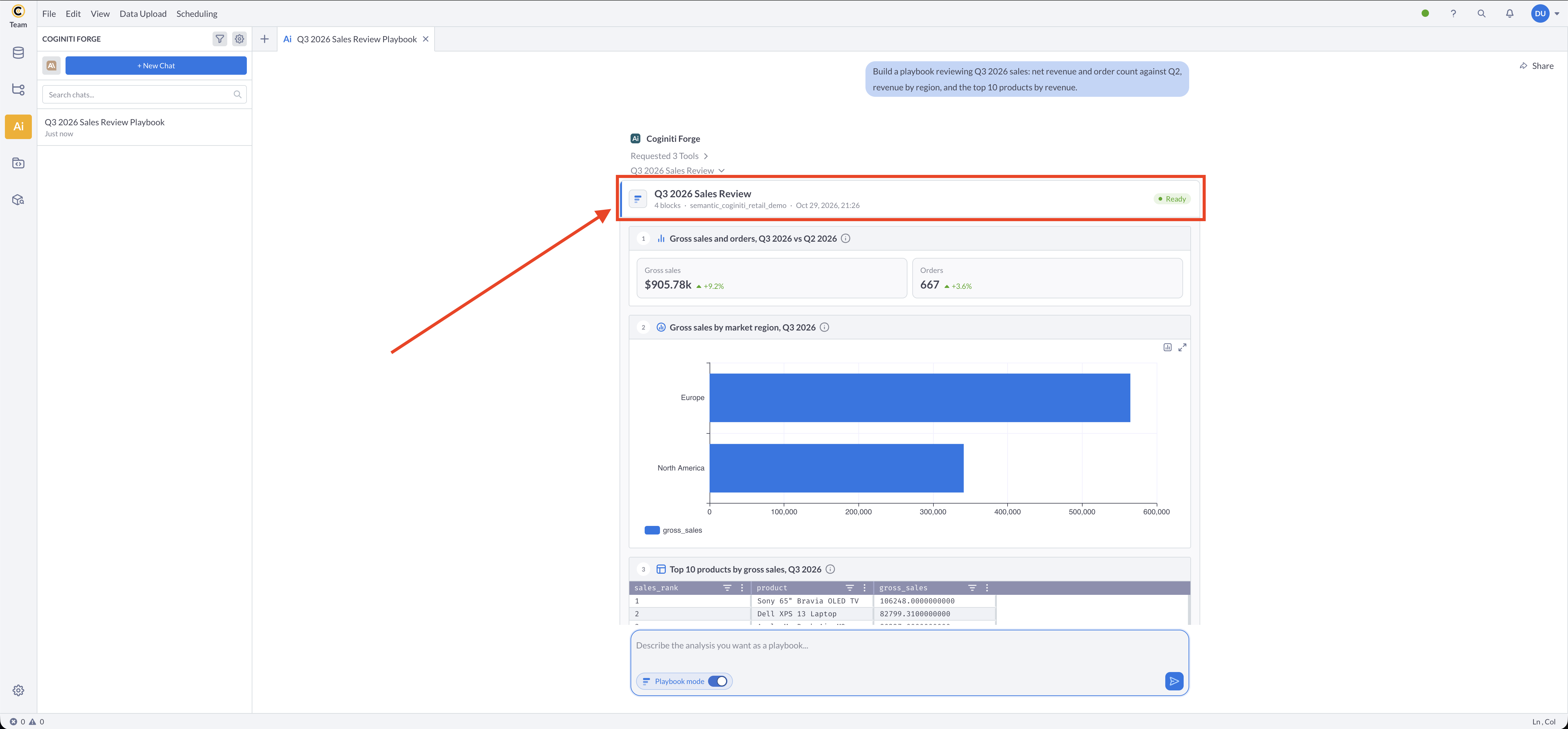
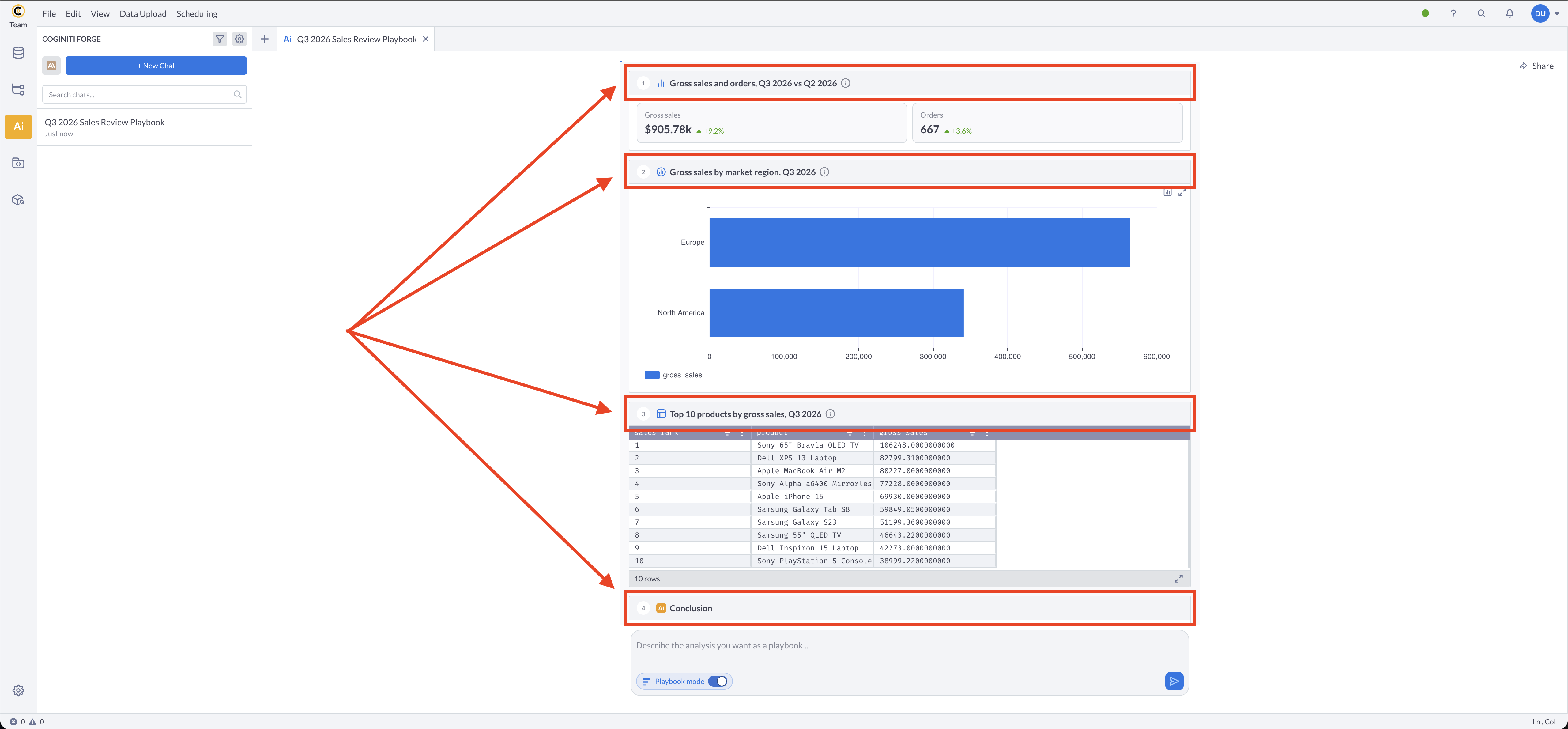
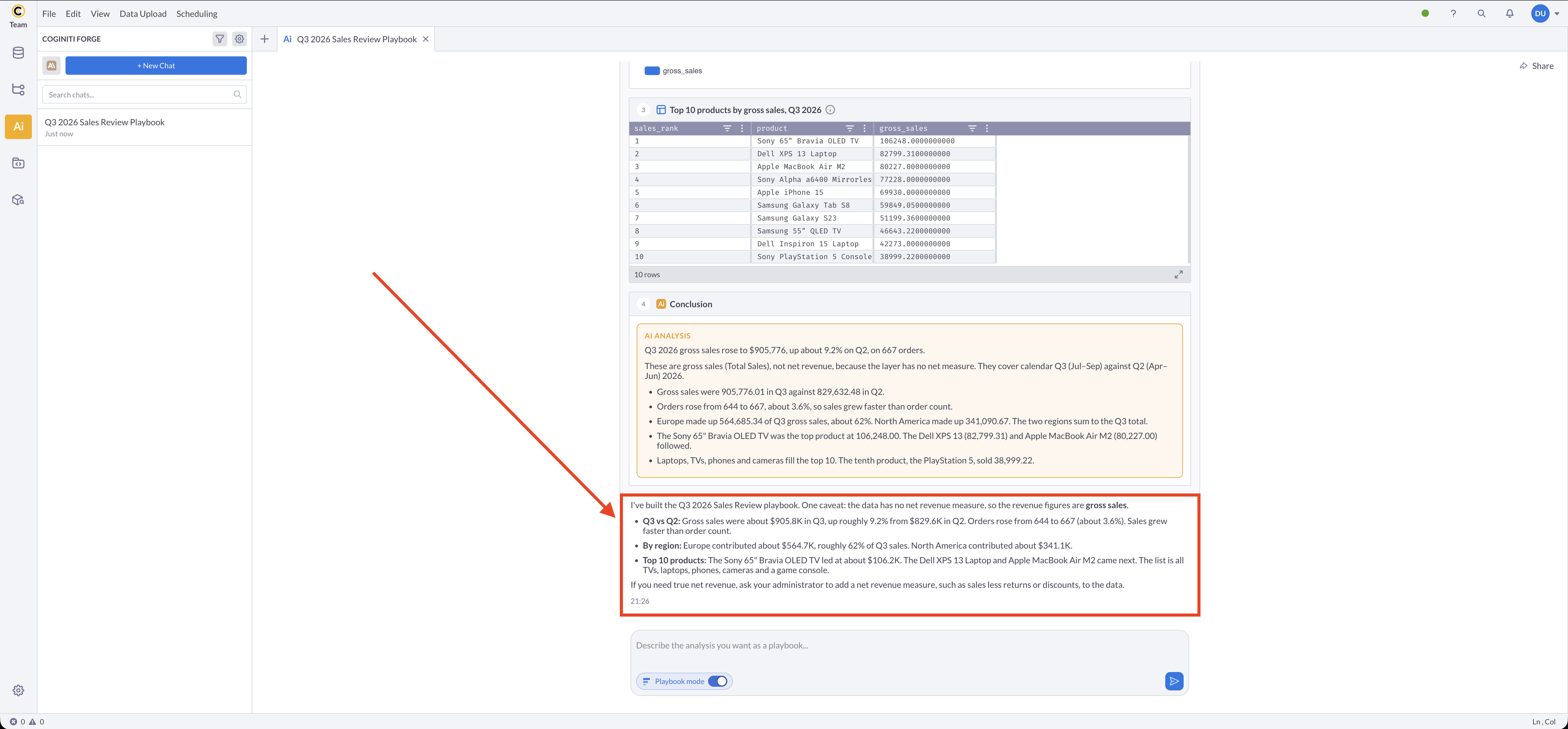
Below the header, blocks are numbered in reading order: headline numbers first, detail after, and the Conclusion last.
- KPI block - tiles with the current value. When the request includes a comparison, such as the previous year or period, each tile also shows the change against it. The arrow shows whether the value went up or down. The color shows whether that change is good or bad for the metric, for example red for falling sales.
- Query block - rows shown as a grid, or drawn as a chart. On a chart, click Chart settings to pick a different chart type. Click the expand icon to open the block in the preview panel, where you can switch between Grid and Chart and use Columns and Filters.
- Conclusion - an AI analysis written from the blocks above it.
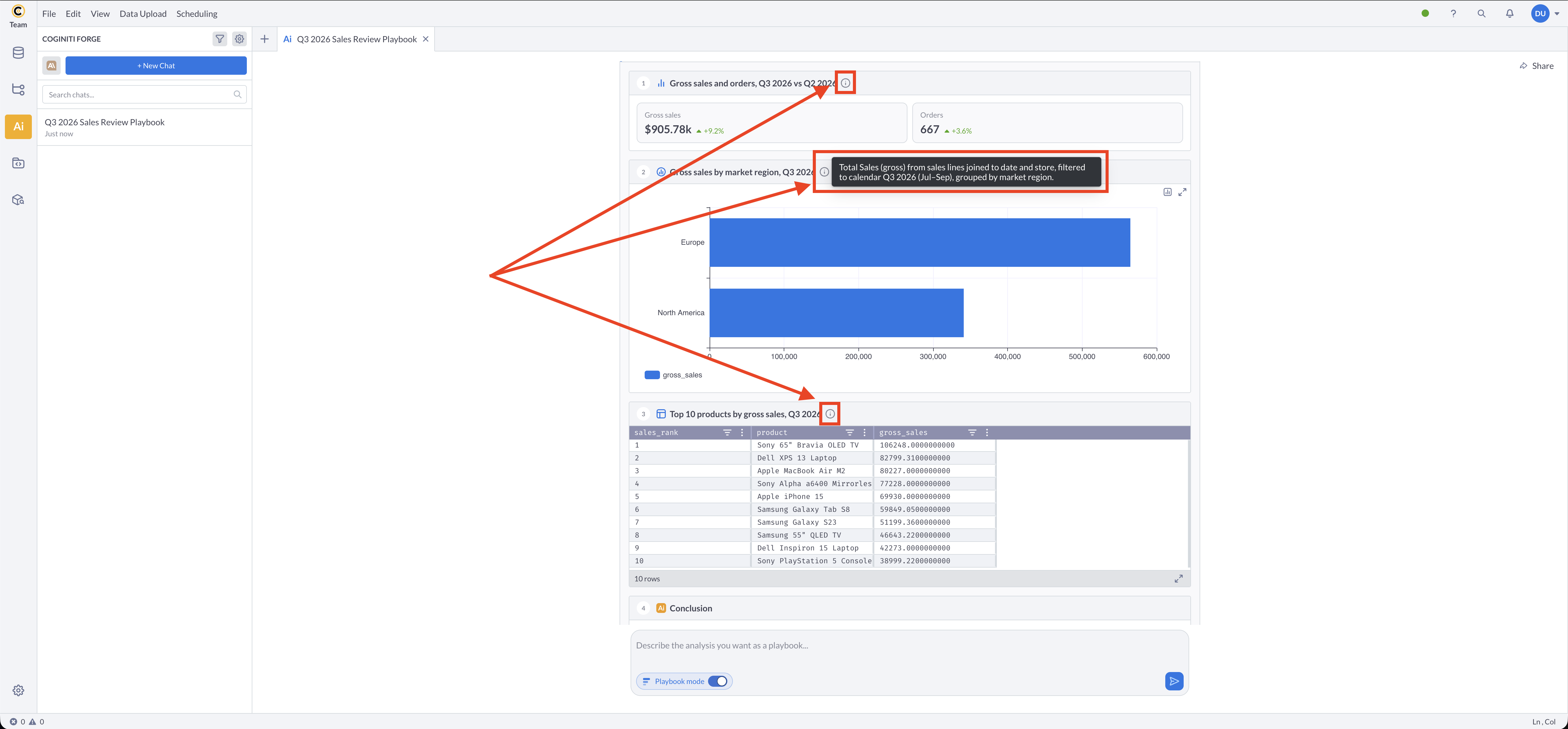
Each block has an info icon next to its title. Hover over it to see what the block shows and how it is worked out, including the period it covers.
After the card, the assistant adds a short message that sums up the playbook and notes anything it does not cover.
7. Ask for a different version
To get a different playbook, send a new request in the same chat, such as "Build the same playbook for Q2 2026." Keep Playbook mode on so the assistant treats it as a request for a document.
Troubleshooting
The assistant answered in text instead of building a playbook. Playbook mode only builds a document when the request clearly asks for an analysis or report with several measures or a comparison. Rephrase the request to say what you want covered, or start it with "Build a playbook...".
The status is Partial. Some blocks could not be built. Each failed block shows an Error status and the reason in its place. Ask for a narrower version of the failed part, or a different breakdown.
The status is Error and the assistant says nothing was built. The assistant does not retry a failed playbook on its own. Narrow the question, name the blocks you want, or set an explicit period, then send it again.
The Playbook mode switch is disabled. The switch is locked while the assistant is responding. Wait for the response to finish or stop it.
The assistant cannot build any block. Check that your catalog project has a semantic layer and that you can run semantic queries. Playbooks are built from the semantic layer, not from raw tables.
Related tasks
- Using the AI chat - including how to share a chat that contains a playbook
- How to configure AI Assistant - provider setup and restricting what the AI can see
- AI data and privacy - what data the assistant sends when it runs queries
For more information about other exciting Coginiti features visit our documentation