Using the AI chat
Forge and Guide share one chat interface. This guide covers everyday use of that interface: starting a conversation, working with the assistant's responses, approving what it does, and managing your chat history.
Prerequisites
- AI Assistant configured - see How to Configure AI Assistant
- Optional but helpful: know what Forge and Guide can each do - see Forge and Guide Explained
Open the chat panel
Click the AI icon in the left sidebar (alongside Database Explorer, Catalog, Files, and Project Reviews), or press Alt+7 in the browser, or Mod+7 in the desktop app.
Click + New Chat to start a new conversation - if you have the Consumer role, you can also press Alt+T.
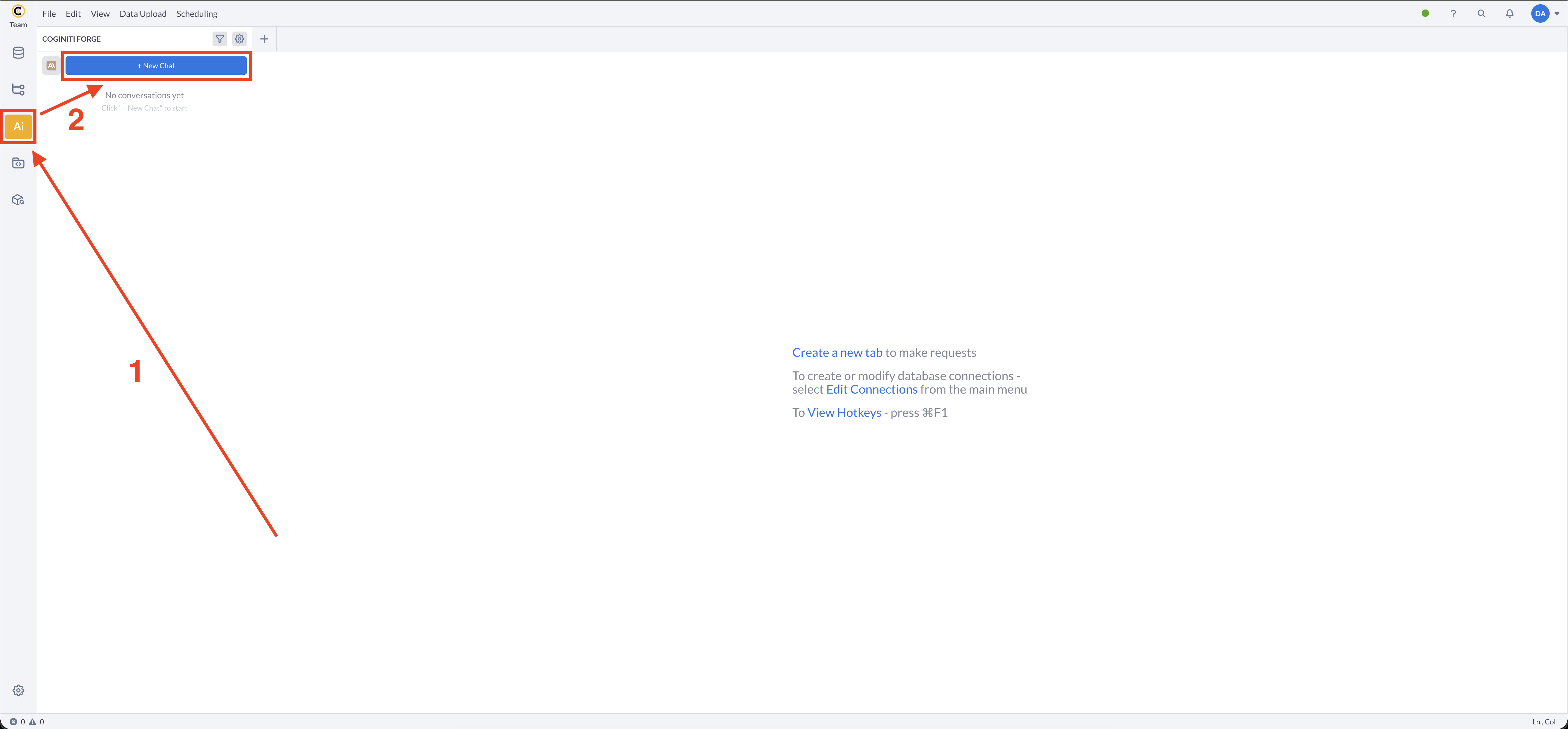
Keyboard shortcuts on macOS Mod is Cmd, and Alt is Option. See the Command Palette Reference for the full mapping and shortcut list.
Have a conversation
-
Ask - type your question or request and send it.
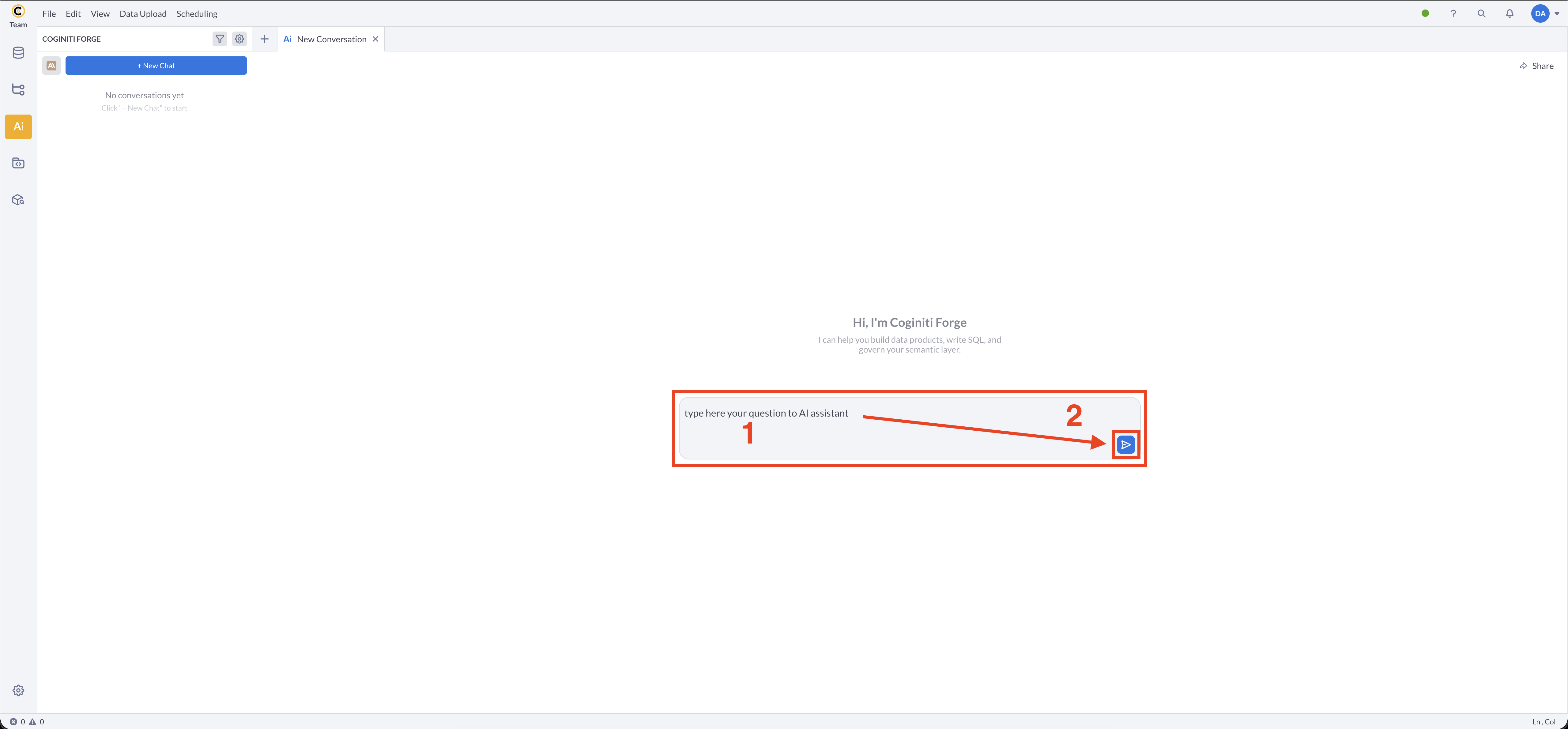
-
Stop - stop the assistant mid-response if you don't need the rest.
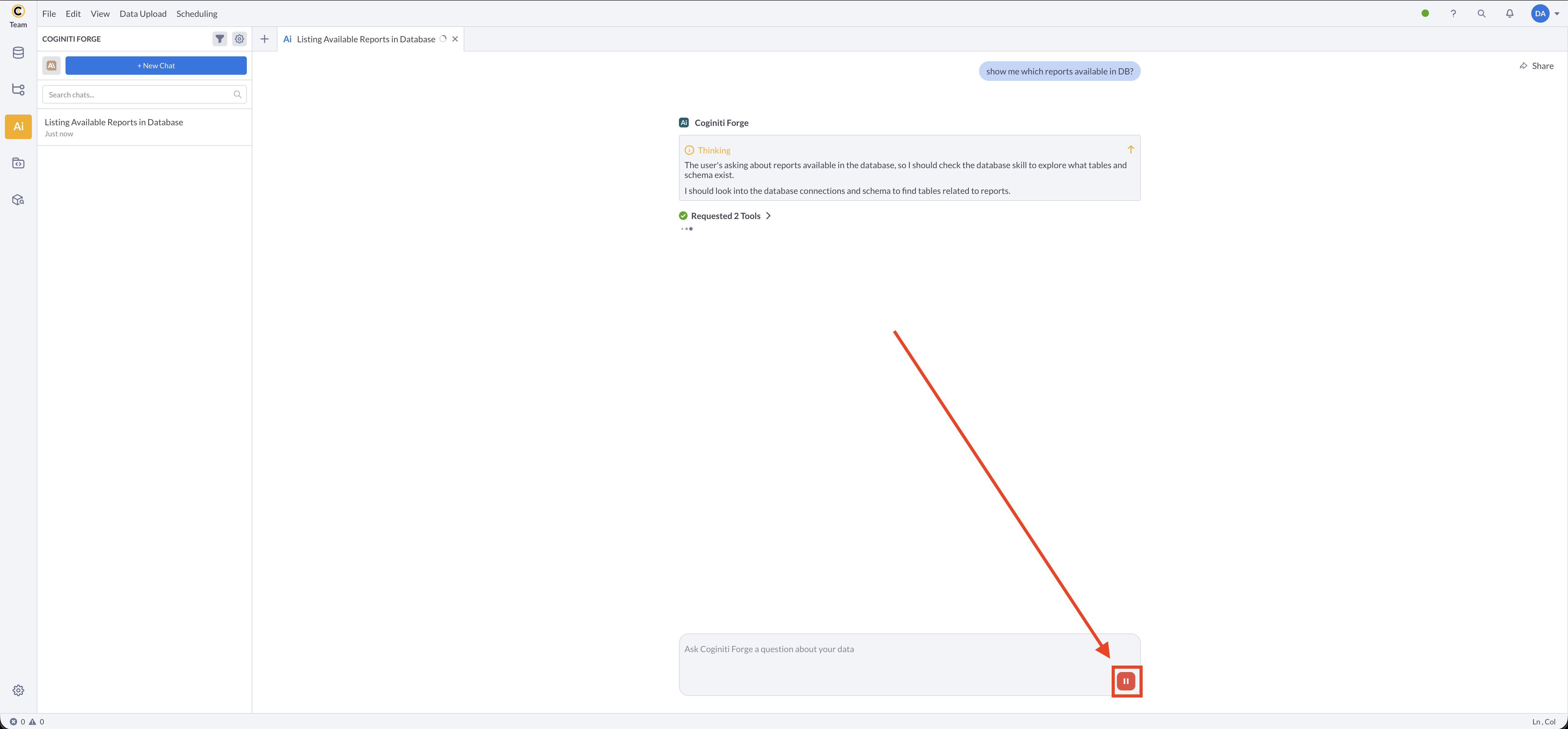
-
Regenerate - ask for a new response to the same message.
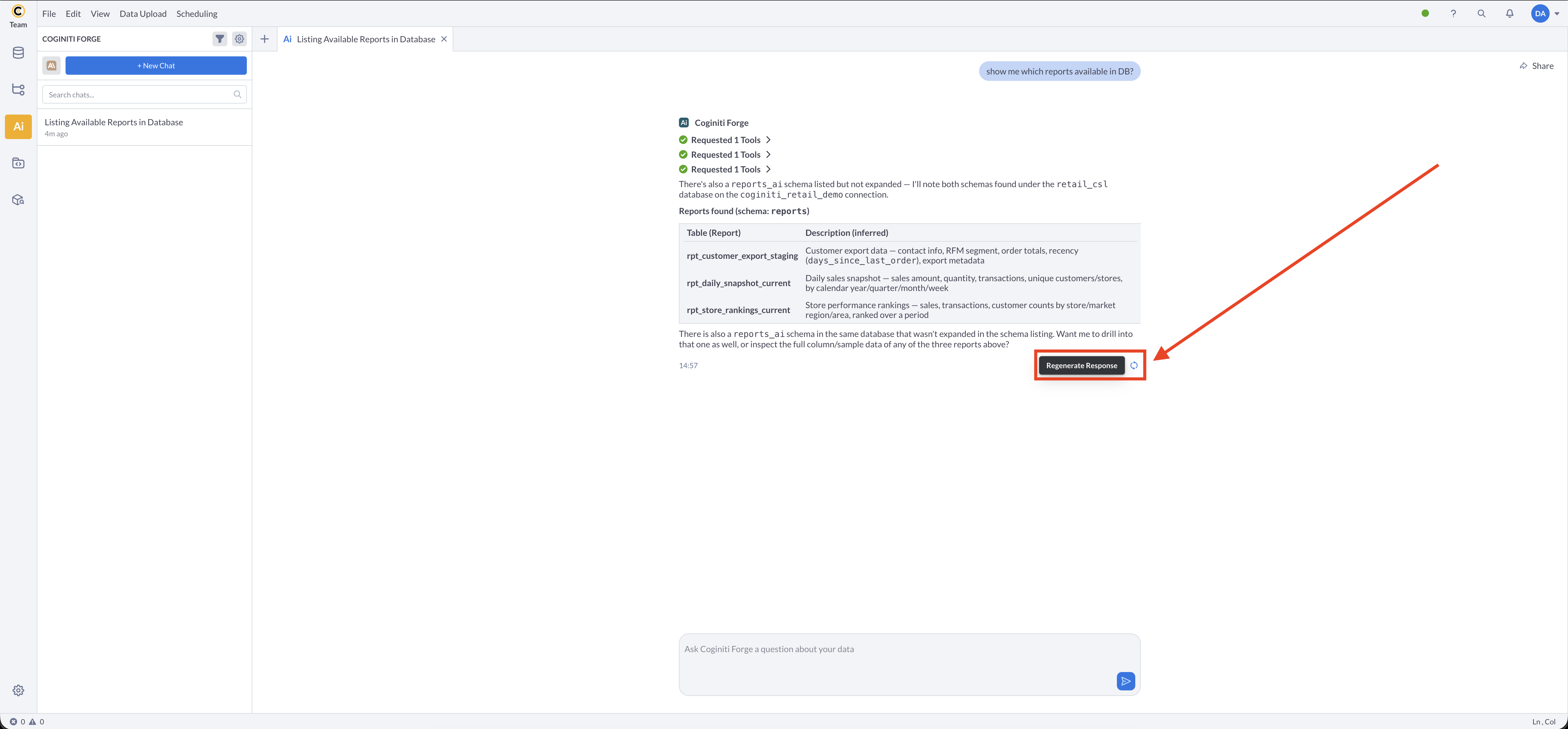
-
Edit - change a message you already sent; the assistant responds again from that point.
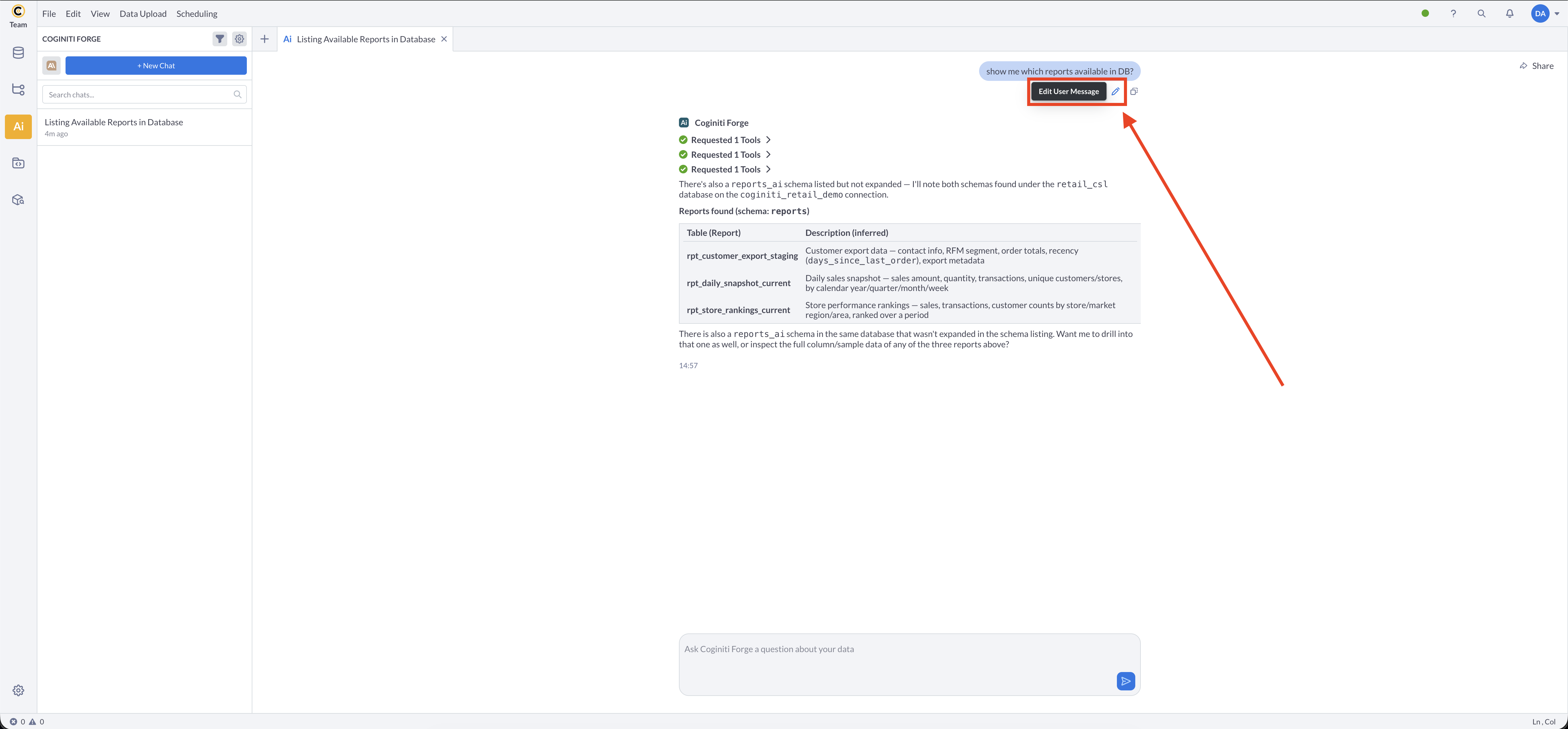
-
Copy - copy any message's text.
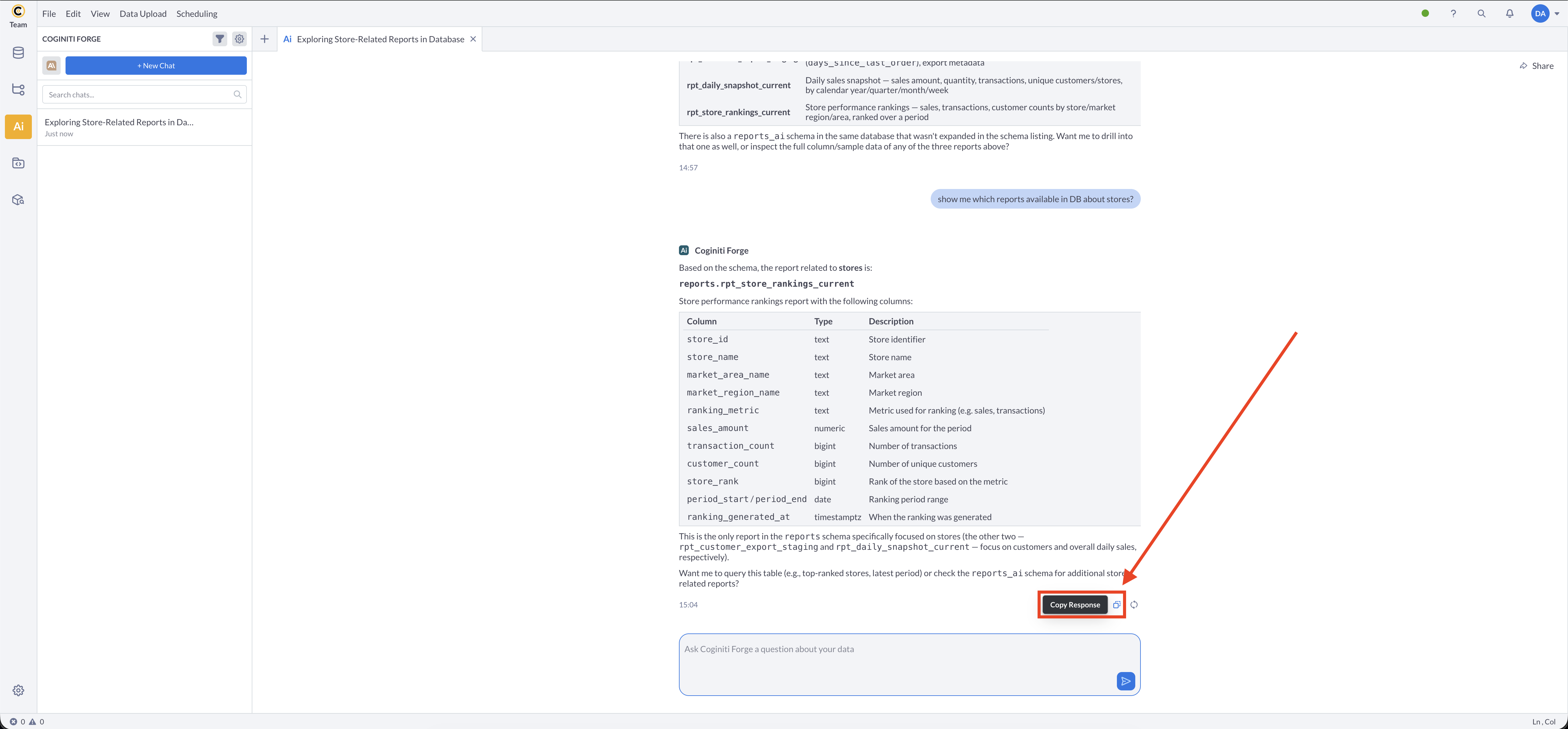
Answer the agent's questions
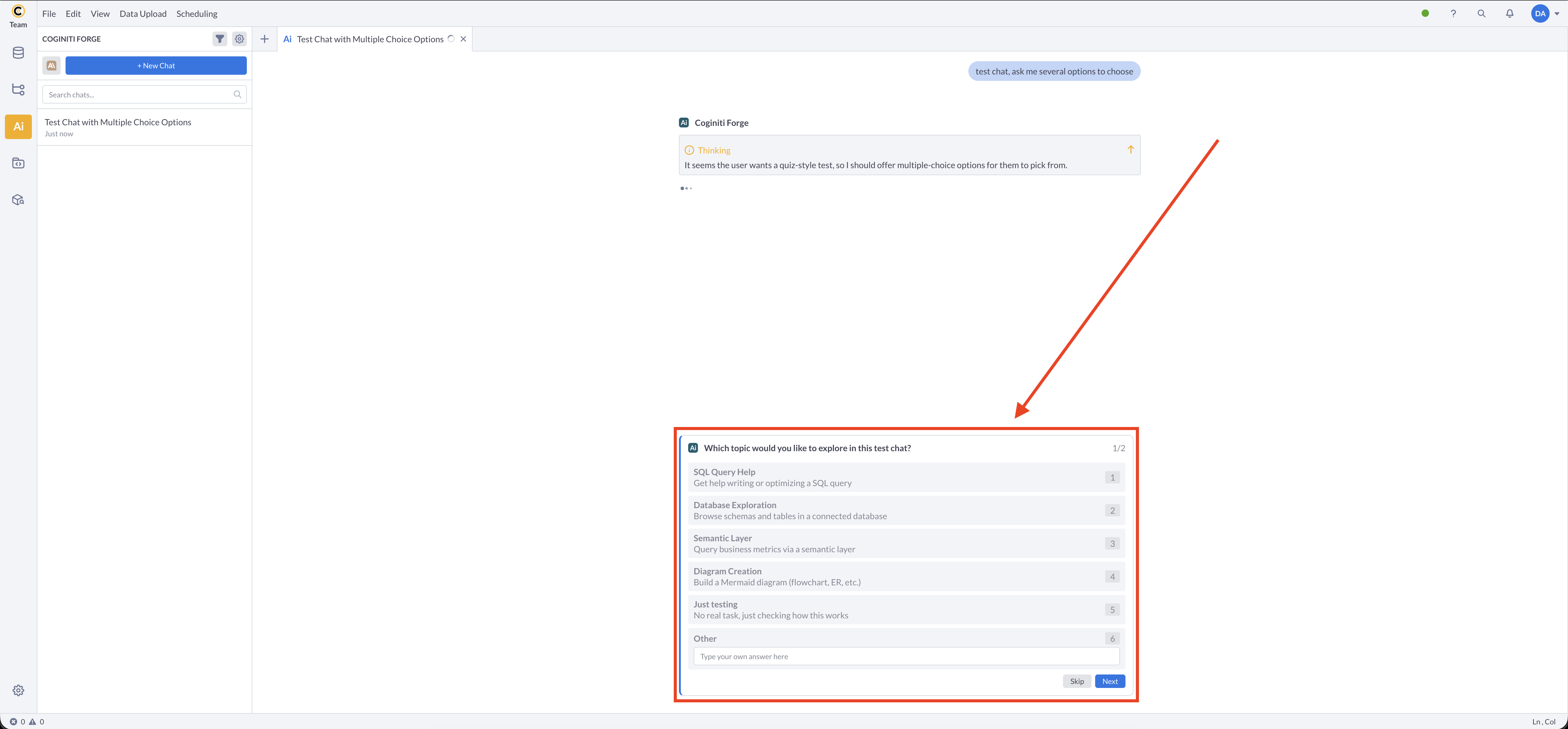
When Forge or Guide needs more information before it can proceed, it asks instead of guessing. You can:
- pick one of the options it offers,
- choose Other to type a free-text answer, or
- Skip the question and let the agent continue without that input.
Review results
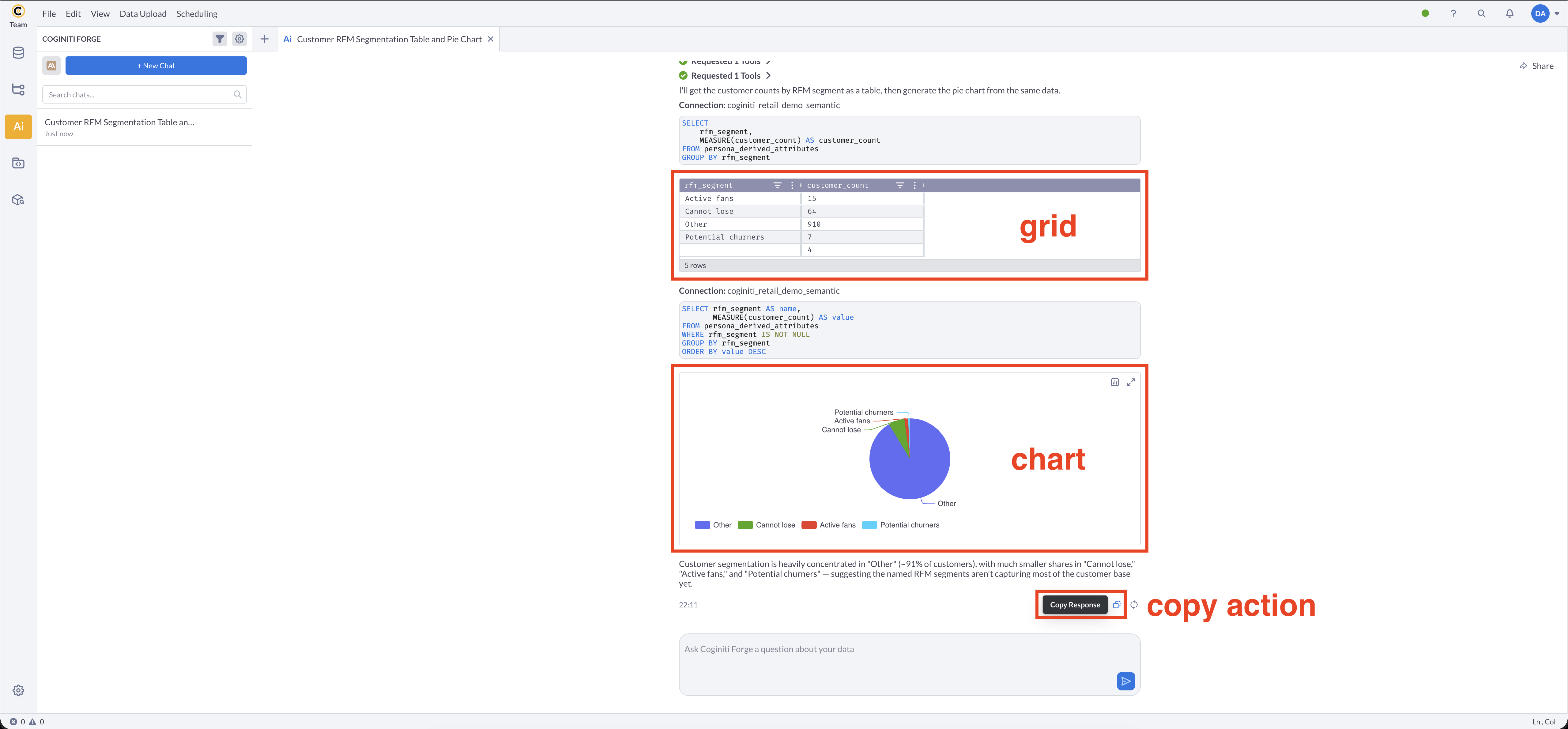
When a request produces data, the assistant shows it inline as a grid or a chart, with a copy action to take the result out of the chat.
Approve or reject actions
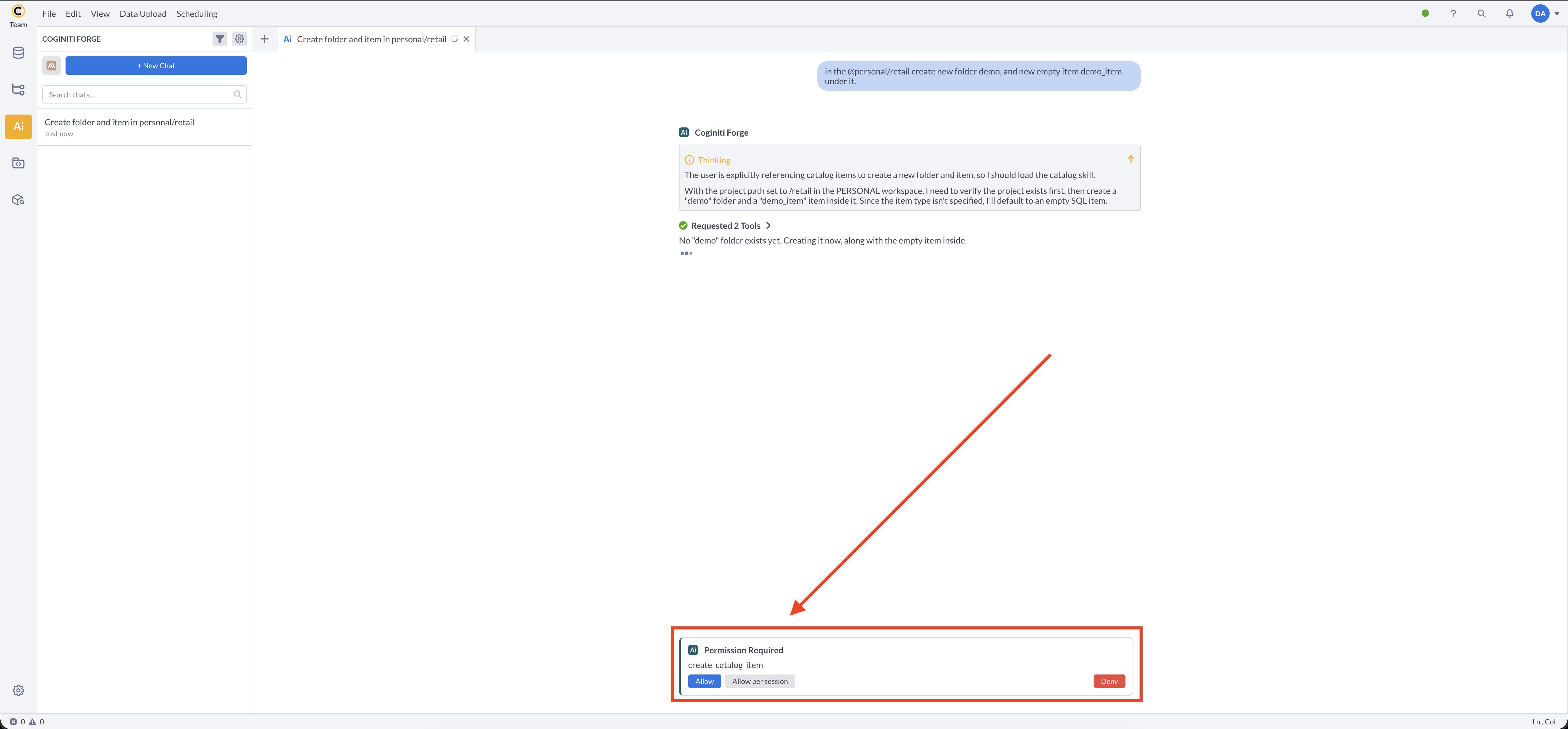
Before Forge takes an action that changes something - creating a catalog item, deleting one - it asks first, with three choices: Allow this one time, Allow per session for the rest of the conversation, or Deny. See how agent approvals work for what triggers this prompt and how the agent handles a denial or a failed model call.
Manage chat history
Every past conversation is listed in the AI panel's history. From there you can:
- search past chats
- rename a chat
- delete a chat you no longer need
Share a chat
Team and Enterprise only. Sharing isn't available in Pro.
Click Share on a conversation to let another user view it. A share is a frozen snapshot taken at the moment you share it - later messages you add to the conversation aren't visible to the recipient unless you share it again. The recipient sees a Shared badge on the conversation.
Use Revoke to remove access; anyone who previously had it sees an access-denied message if they try to open it again.
See AI in Coginiti Overview for the full map of AI features.
For more information about other exciting Coginiti features visit our documentation