Set up a Consumer with a semantic connection and AI access
This guide walks an administrator through onboarding a Consumer: assign the Consumer role, share a semantic connection, and confirm the Consumer can use AI against it.
Available in Coginiti Team and Coginiti Enterprise only.
Overview
Coginiti has three user roles:
| Role | Access |
|---|---|
| Admin | Full system access, including administration and templates |
| User | Builds and governs data: connections, catalog, projects |
| Consumer | Read-only business user — no direct database access |
A Consumer reaches data only through a semantic connection that an admin explicitly shares. Consumers do not manage connections, browse the catalog, or write SQL. They work through AI chat (Coginiti Guide) and the Analytics Playbook (WIP), asking questions in plain language.
AI access is role-gated: there is no per-connection switch. Once a user holds the Consumer role and has access to a published semantic connection, AI is available. Queries always run under the Consumer's own data entitlements — the role grants no privilege escalation.
Prerequisites
- You are signed in as an Admin (user management and templates require the Admin role).
- Service account credentials for the database you want the Consumer to reach. A Consumer cannot supply their own credentials, so the database connection must use a shared service account.
- The AI Assistant is configured for your instance. See Configuring AI Assistant.
Step 1: Assign the Consumer role
Open Settings → Admin Settings → Users & Access → Users.
Invite a new user as a Consumer
- Click to add a user. The Add New User dialog opens.
- Under Role, select Consumer.
- Complete the user details and click Add.
The user is created directly as a Consumer with no extra cleanup needed.
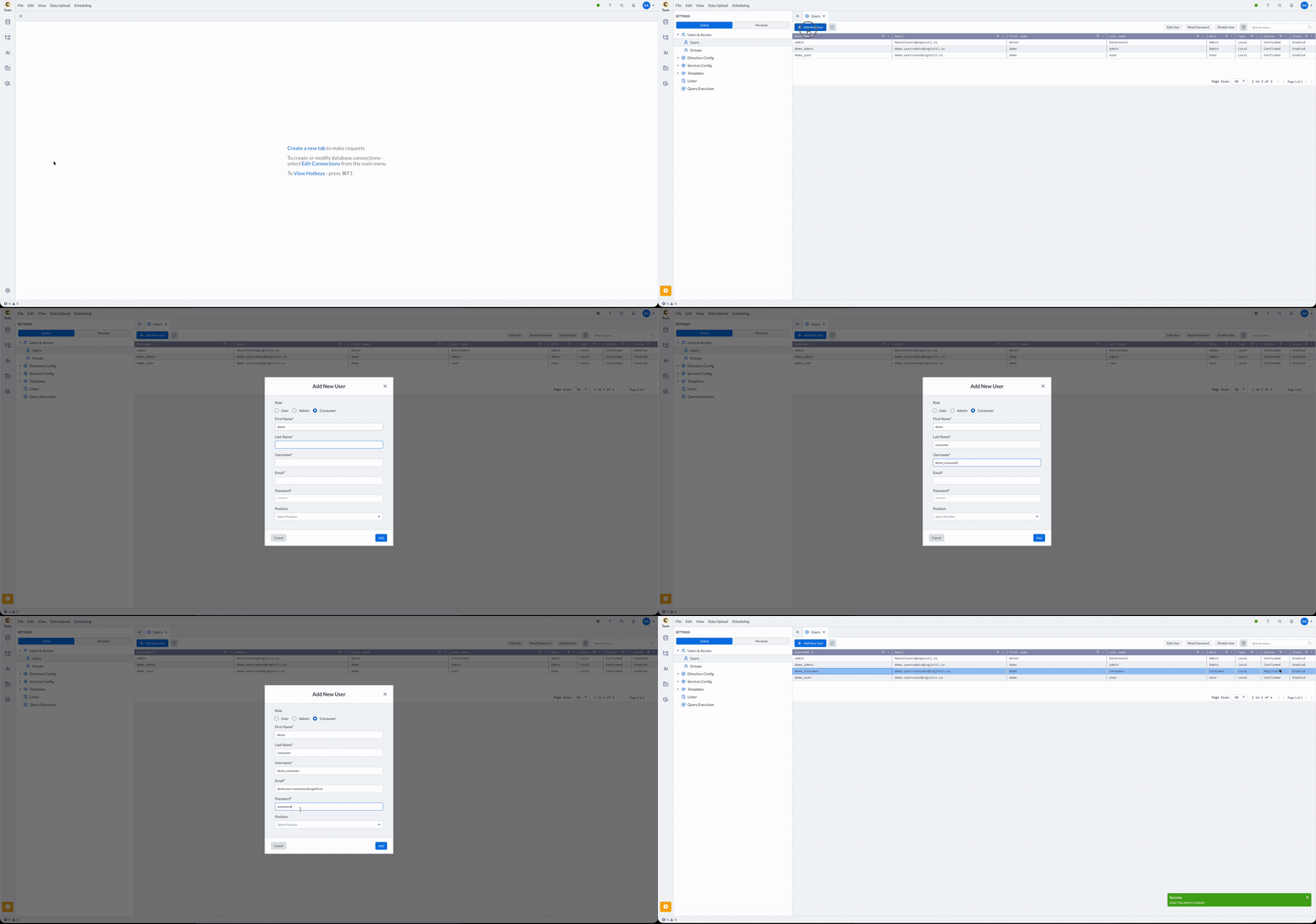
For the full user-creation workflow (fields, groups, LDAP/OAuth/SAML provisioning), see Managing users.
Convert an existing user to a Consumer
- Select the user and open the Edit User dialog.
- Under Role, choose Consumer.
- Click to save. Because this changes the role to Consumer, a confirmation dialog titled Change User Role To "Consumer" appears.
Converting an existing user to a Consumer is irreversible.
The confirmation dialog states: all of the user's database and object store connections will be deleted, while the catalog items they own must be either reassigned to another user or removed as well.
Once a user is a Consumer, the Role selector is disabled for them — a Consumer cannot be upgraded back to User or Admin.
From the confirmation dialog you have three choices:
- Cancel — abort the change.
- Move To Consumer and Reassign — reassign the user's catalog assets before conversion. This opens the Move User To Consumer Role And Reassign Assets dialog, where you pick a target user under Reassign to:. A final confirmation (Change Role To "Consumer" And Reassign Assets) summarizes that all assets will be assigned to the chosen user.
- Move To Consumer — convert immediately. Connections are deleted and owned catalog items are removed.
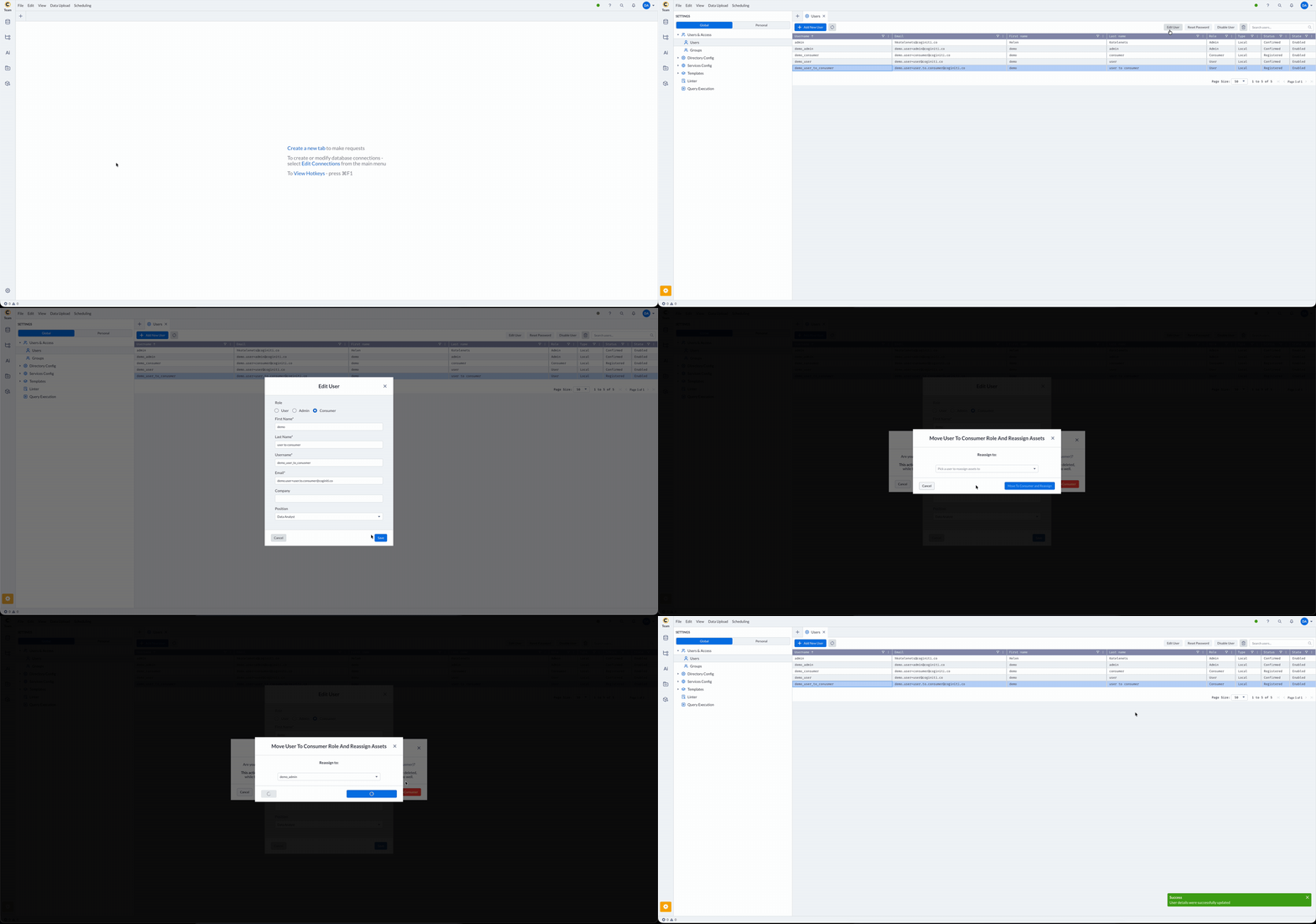
Changing a user's role immediately revokes their active sessions — all of the user's access tokens are invalidated, so they must sign in again under the new role.
Step 2: Share a database connection
The semantic layer reads from a physical database, so the Consumer needs the underlying database connection shared with them as well. Share it through a connection template that carries shared service account credentials.
Create the database connection template (if needed)
- Open Settings → Admin Settings → Templates → Database Templates.
- Create a new connection template.
- For the connection driver, select your database platform (for example, Snowflake, PostgreSQL, or Redshift).
- Configure the connection parameters.
For the complete template workflow — credential sharing, platform-specific settings, and saving — see Managing Connection Templates.
Enable Share Sensitive Data
In the template's credential settings, check "Share Sensitive Data" and enter the service account credentials. With this enabled, the connection runs under the shared service account and end users connect without supplying any credentials of their own.
For Consumers, "Share Sensitive Data" is mandatory. A Consumer has no direct database access and cannot enter their own credentials, so the connection must carry shared service account credentials. If "Share Sensitive Data" is unchecked, the Consumer is left without a way to authenticate and cannot use the connection.
Assign the Consumer to the template
In the connection template's detail form, find the consumers panel. It has two lists:
- Available Consumers — users and groups not yet assigned.
- Assigned Consumers — users and groups who can use this connection.
To share the connection:
- Use the filter box to find the user or group.
- Select the entry and move it to Assigned Consumers (double-click, or use the arrow button).
- Save the template.
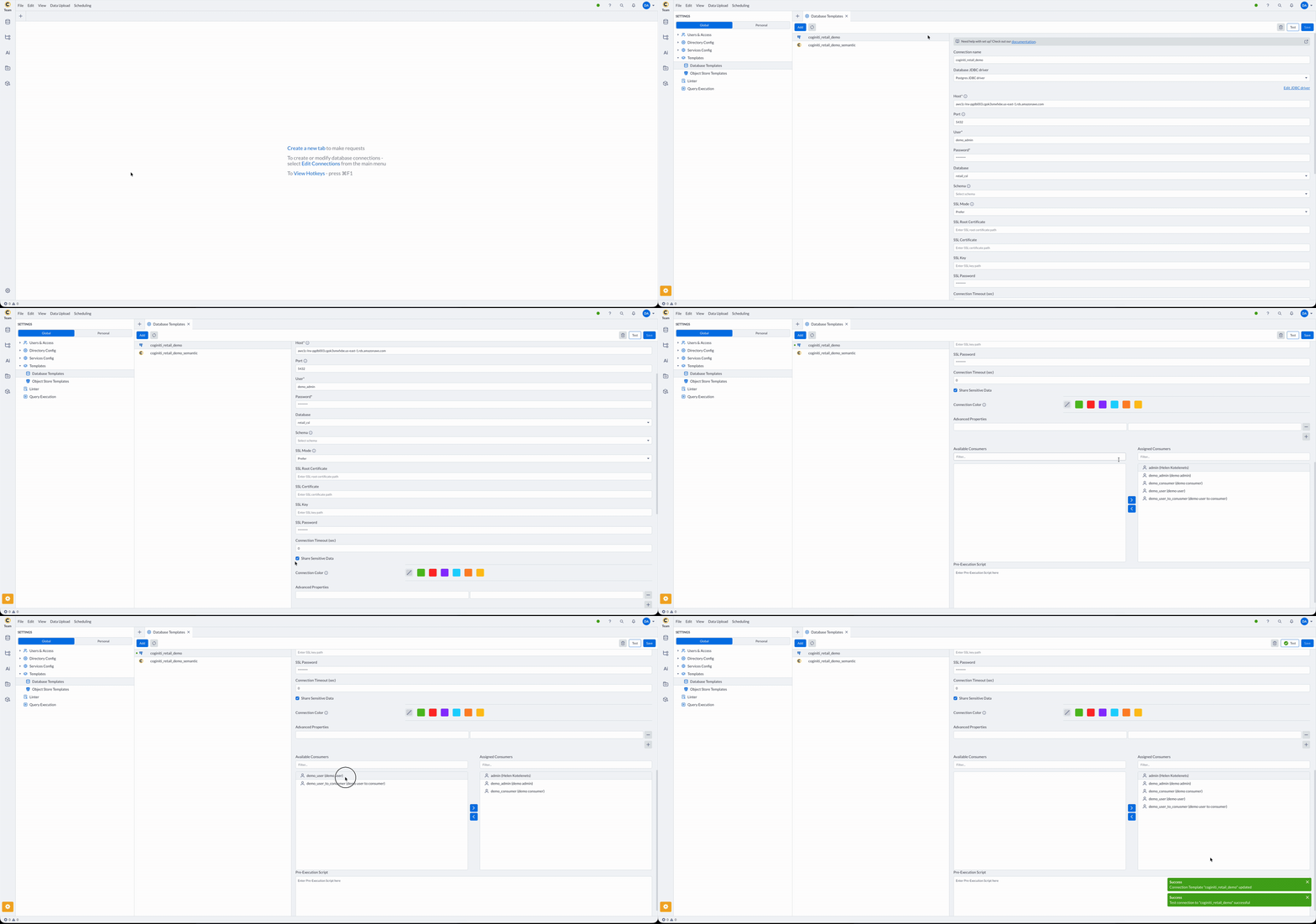
You can assign either an individual user or a group. Group entries grant access to every member of the group.
Assigning by group keeps onboarding simple: add new Consumers to the group and they inherit access to every connection shared with that group.
Step 3: Share a semantic connection
A Consumer can only reach data through a semantic connection that you assign to them. The semantic connection sits on top of the database connection from Step 2.
This step assumes a project with a configured semantic layer has already been published. If you still need to set that up, see Share a Project With Semantic Layer.
Create the semantic connection template (if needed)
- Open Settings → Admin Settings → Templates → Database Templates.
- Create a new connection template.
- For the connection driver, select the Semantic Layer platform.
- Configure the connection parameters and save.
Assign the Consumer to the template
Open the semantic connection template and use the consumers panel to move the user or group into Assigned Consumers, then save — the same flow used for the database connection in Step 2.
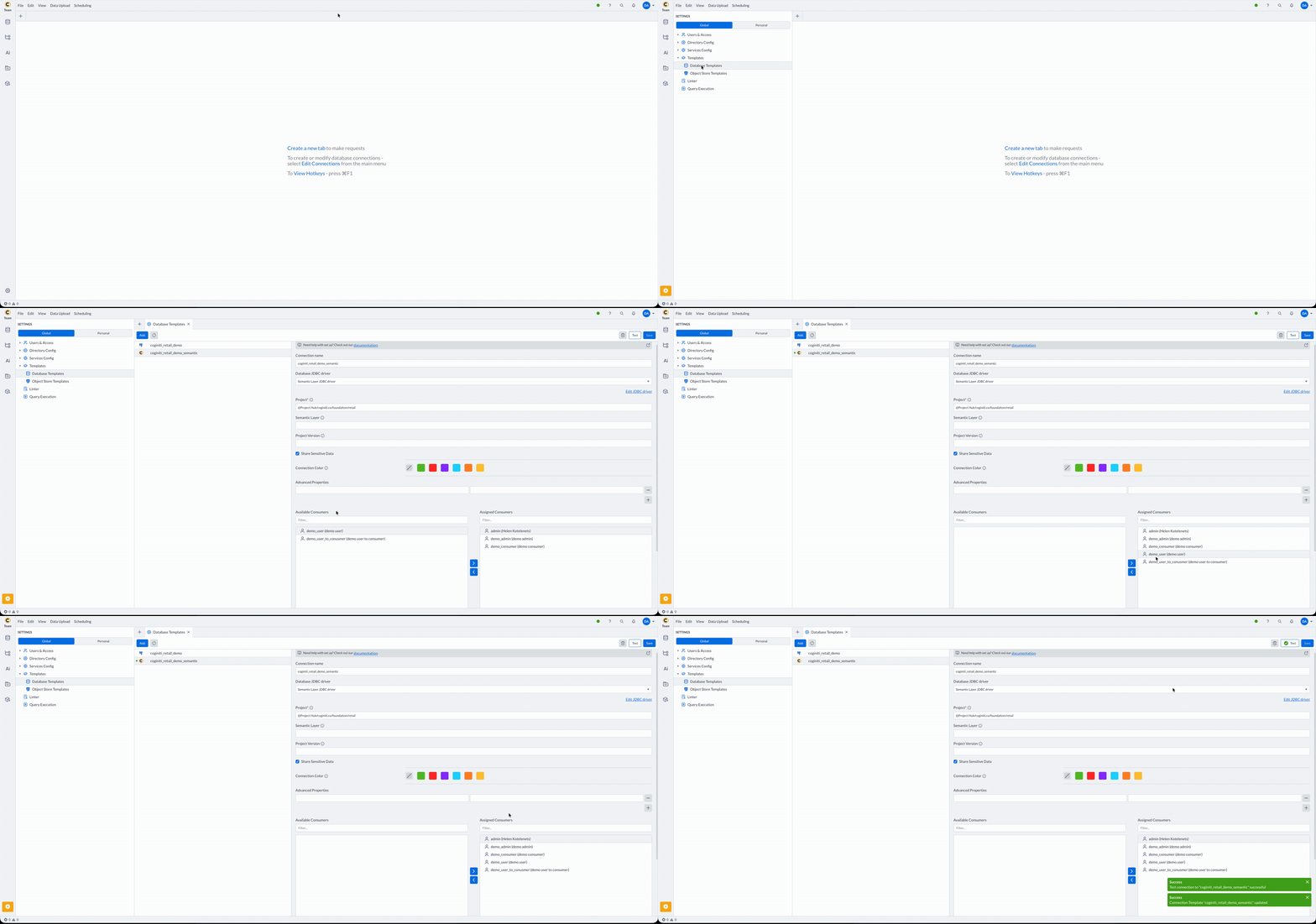
A Consumer needs both the database connection and the semantic connection shared with them. Sharing only one leaves the Consumer unable to obtain data.
Step 4: Confirm AI access
AI access follows the role — there is no per-connection switch to flip — but the Consumer still needs a configured AI Assistant provider before AI chat can answer:
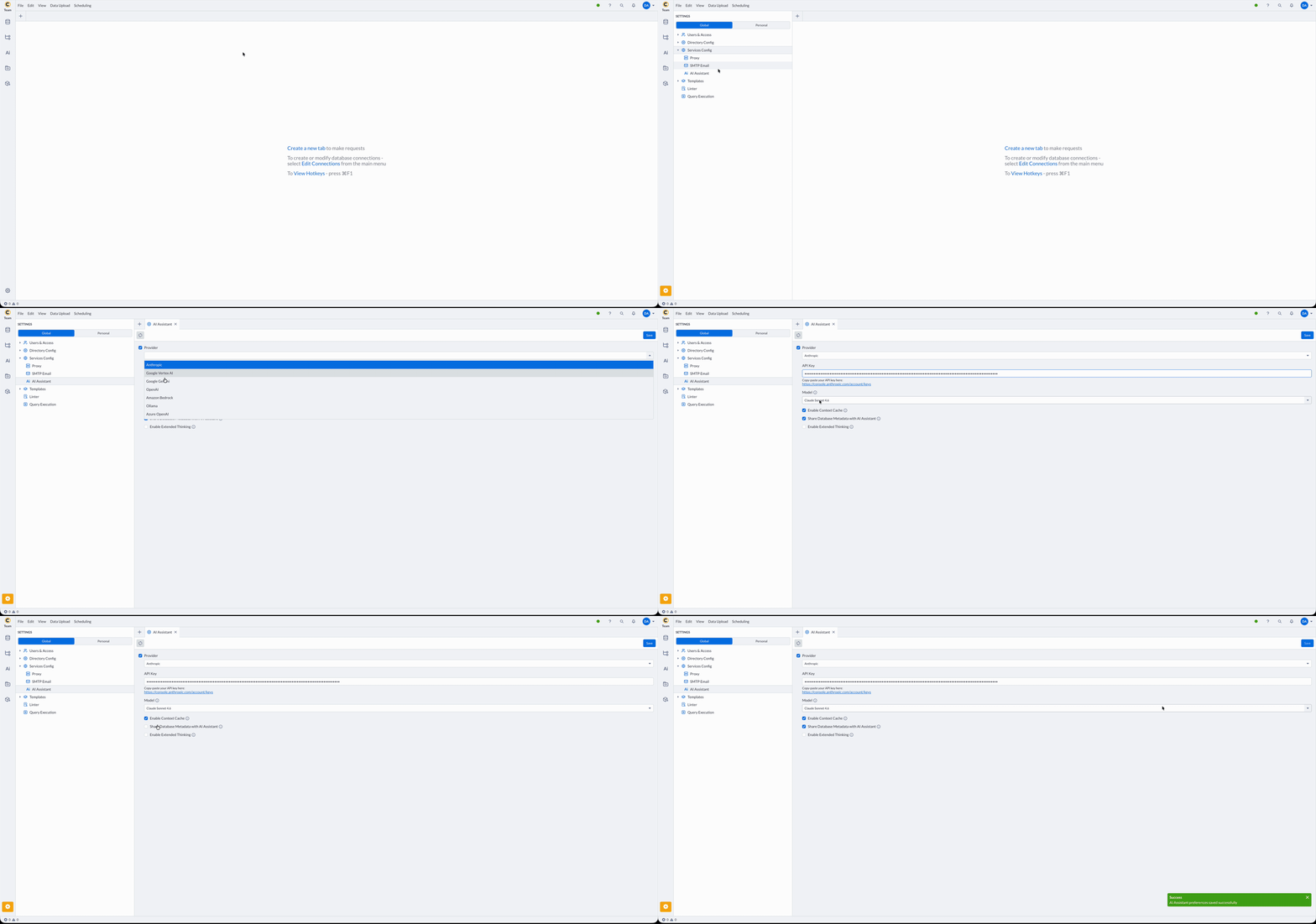
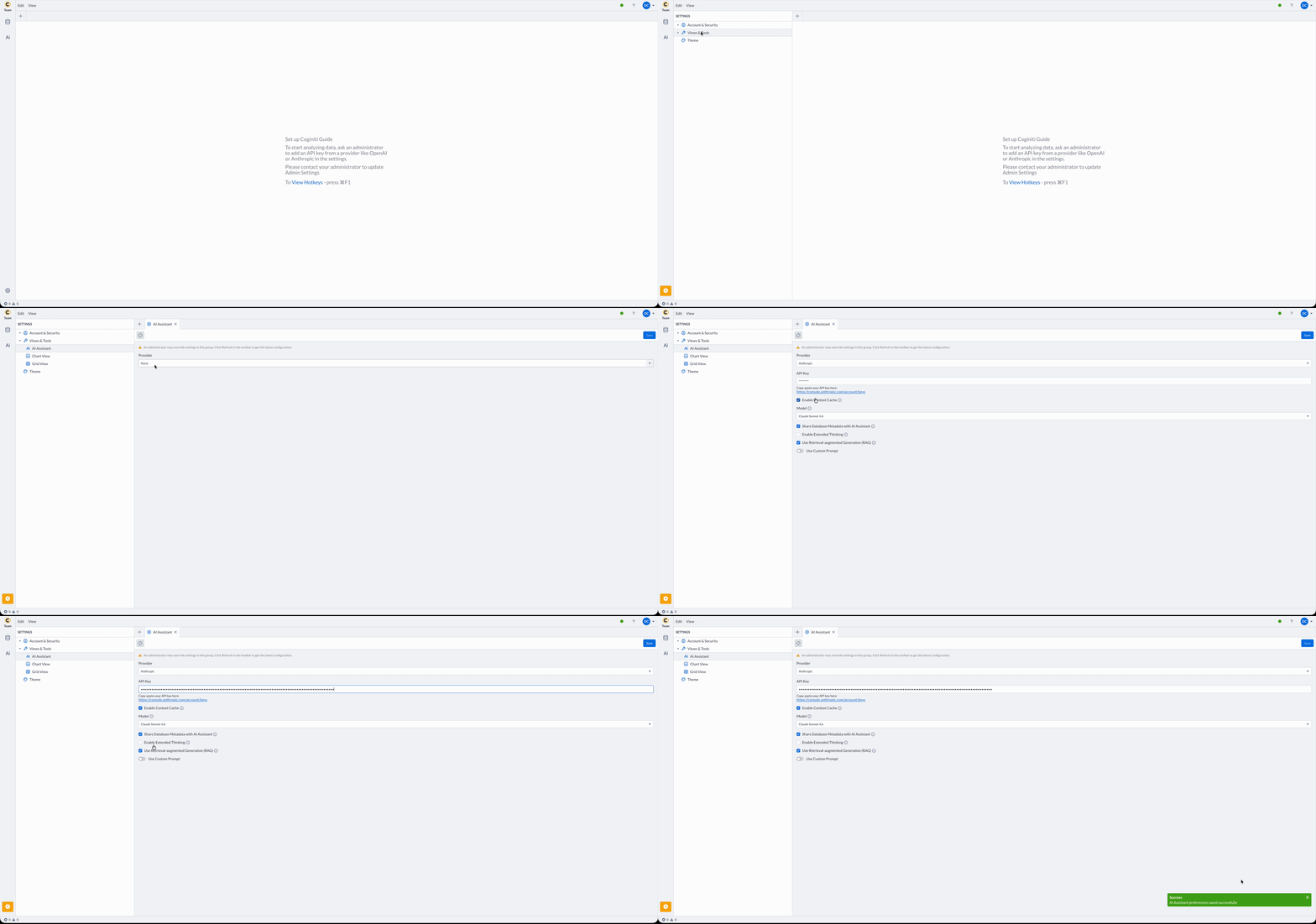
- A working AI Assistant provider must be available to the Consumer. This can be
either:
- a global AI Assistant provider configured by an administrator for the whole instance (see Configuring AI Assistant)
- or a personal AI Assistant provider the Consumer configures in their own AI Assistant settings.
- a global AI Assistant provider configured by an administrator for the whole instance (see Configuring AI Assistant)
- Consumers automatically receive AI chat — they can create a new chat and send messages.
Without an available AI provider — personal or global — AI chat cannot answer questions even though the Consumer role grants access to it.
What the Consumer sees
When a Consumer opens AI chat, the assistant identifies itself as Coginiti Guide ("Ask questions about your data in plain language"). This differs from the Coginiti Forge persona that Admins and Users see ("AI assistant for building and governing data").
Coginiti Guide is intentionally constrained:
- It has access only to the semantic layer. It cannot browse the catalog, list projects, or open SQL files.
- It never exposes raw SQL, physical table names, columns, or schema internals — even if asked directly.
- Answers are grounded in the semantic layer, with results returned in plain language.
Data entitlements
Queries the Consumer runs through AI execute under their own data access. The Consumer role grants no elevated privileges, so a Consumer can only see data exposed by the semantic connections shared with them.
Verify the setup
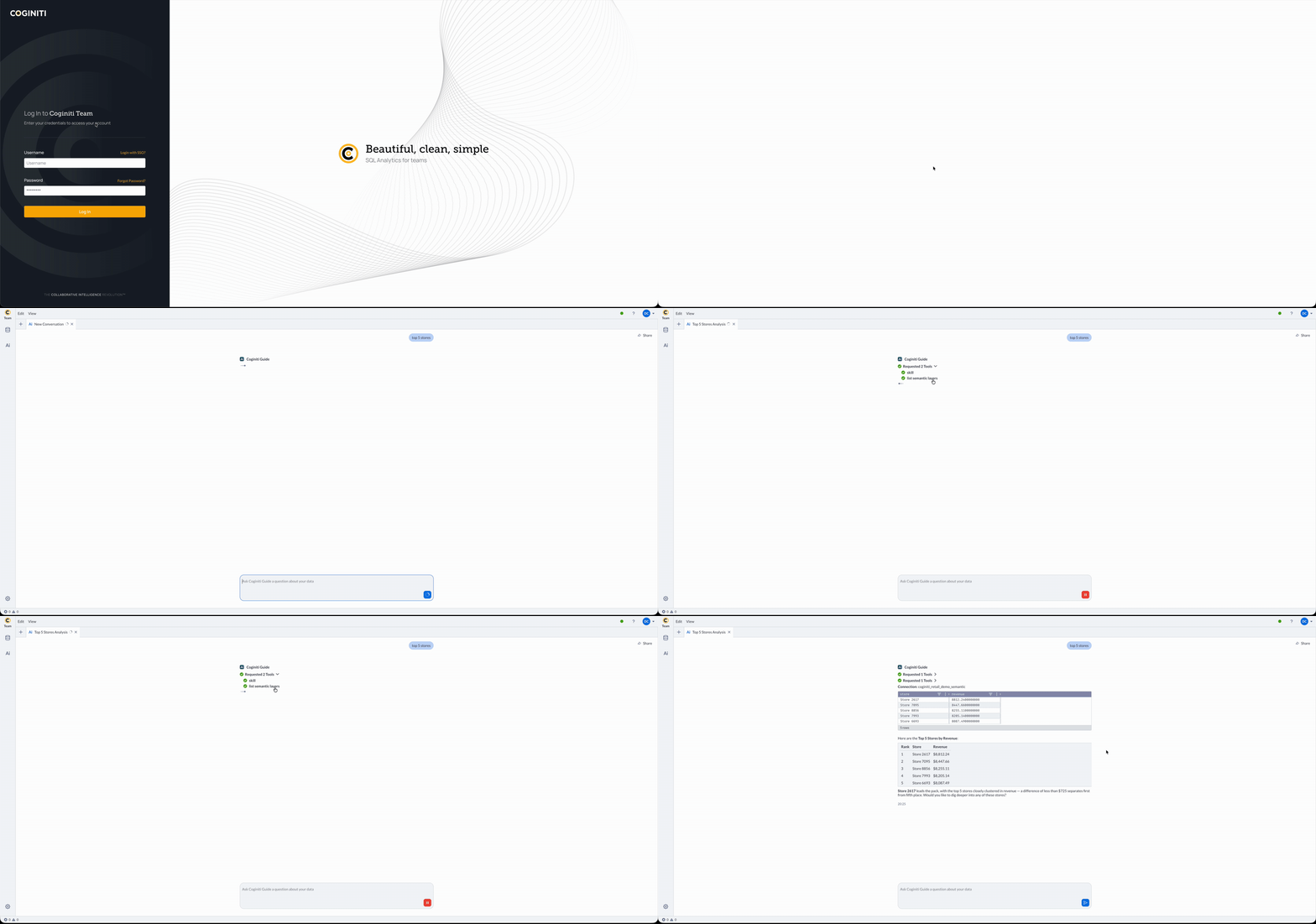
- Sign in as the Consumer (or have them sign in).
- Confirm the focused Consumer experience loads (AI chat available; no catalog or connection management).
- Open AI chat and confirm the assistant presents itself as Coginiti Guide.
- Ask a question that the shared semantic connection can answer and confirm a result is returned.
Troubleshooting
Consumer has no AI chat
- Confirm the user's role is actually Consumer.
- Confirm an AI Assistant provider is available — either set up personally by the Consumer, or configured globally by an administrator. See Configuring AI Assistant.
Consumer cannot see any data
- Confirm the user (or a group they belong to) is in the Assigned Consumers list of a published semantic connection template.
- Confirm the connection template uses the Semantic Layer platform.
- Confirm "Share Sensitive Data" is checked on the template. A Consumer cannot supply their own credentials, so the connection must use a shared service account.
Need to undo a Consumer conversion
- This is not possible. Converting a user to Consumer is irreversible and a Consumer cannot be upgraded. Create or use a separate User/Admin account instead.
Consumer was reassigned the wrong assets
- Asset reassignment happens at conversion time via the Move To Consumer and Reassign flow. Manage the assets directly under their new owner afterward.
Related guides
- Managing users
- Managing Connection Templates
- Share a Project With Semantic Layer
- Configuring AI Assistant
For more information about other exciting Coginiti features visit our documentation