How to explore the lineage of CoginitiScript and the Semantic Layer
This guide shows how to use the lineage view. The lineage view shows CoginitiScript blocks and semantic layer entities on one canvas. Use it to find where the data of an entity comes from, and which entities and blocks use the data of a block.
Entities that read a block: How to build a semantic entity from a CoginitiScript block
Semantic model reference: Semantic Model Reference
CoginitiScript reference: CoginitiScript Reference
Prerequisites
- A catalog project with CoginitiScript blocks, a semantic layer, or both
- For CoginitiScript blocks with a
:run_conditionthat depends on the platform: a database connection
Coginiti Pro does not have the semantic layer. In Coginiti Pro, the lineage view shows only CoginitiScript.
How it works
The lineage view starts from one object: a block, a package, a script, a semantic entity, a model or a project. The view shows the lineage of that object.
The lineage view divides the canvas into regions:
- A CoginitiScript region is a project.
- A semantic region is a model. A model is one semantic layer of a project.
The region of the start object is the home region. The home region is always open. All other regions start collapsed. A collapsed region is one card. This card shows only the nodes that connect to the rest of the canvas. You expand a region in place when you need more of it.
The two domains connect where a semantic entity reads a table or a view that a CoginitiScript block publishes.
Step 1: Open the lineage
Use one of these procedures:
- From the catalog. Right-click a block script, a folder, a model file or a project. Then click Show Lineage. A project opens all of its CoginitiScript packages and all of its semantic layers.
- With a connection. If the CoginitiScript blocks need a connection, right-click the item. Then click Show Lineage in "<connection>".
- From a semantic model file. Put the cursor on an entity, a dimension or a measure. Then right-click and click Show Lineage at Cursor, or press
F9. Coginiti saves the file. Then a tab opens with that item in focus. - From a CoginitiScript file. Put the cursor on a block, or select the code. Then right-click and click Show Lineage at Cursor or Show Lineage for Selected Code, or press
F9. The lineage shows in the output pane of the editor, not in a tab. This lineage shows only CoginitiScript. It uses the text of the editor, also when you did not save it. - From a card in the lineage view. Right-click the card. Then click Show Lineage. A new tab opens and starts at that card.
If a tab with the same start is open, Coginiti shows that tab.
Step 2: Read the canvas

- Each card has a color rail on its left edge. Amber is CoginitiScript. Violet is the semantic layer.
- The cards of the start objects are blue.
- A CoginitiScript block, a package or a semantic entity is a card.
- A physical table that an entity reads is a card.
- An edge goes from the source of the data to the user of the data.
- An edge between a block and a semantic node is dashed. Its label is the name of the published object, for example
mart.sale_return_fact. - An open region from a different project or model is in a frame. The header of the frame shows the name of the region and its controls.
- The card of a CoginitiScript project that other projects depend on shows the version that they ask for, for example
version 1.2.0.
Step 3: Expand a region
On a collapsed region card, click Expand (the icon next to the kind of the region). The region opens in a frame, at the same position. Coginiti loads only the lineage that goes through the region.

The header of an open region has these controls:
| Control | Result |
|---|---|
| Load Entire Project or Load Entire Model | Loads all nodes of the region. |
| Show Lineage Only | Shows only the lineage that goes through the region again. This control replaces Load Entire after you load the full region. |
| Collapse | Changes the region back to one card. The home region does not have this control. |
When the tab starts from a project or from the folder of a model, the home regions already show all of their nodes. They do not have Load Entire or Show Lineage Only.
An open region can show more collapsed regions. Expand only the regions that you need.
To drag a frame, drag its header.
Step 4: Change what the canvas shows
Domain settings
The toolbar has one setting for each domain. A setting changes only the nodes of its domain. A setting is disabled when the canvas has no open region of its domain.
| Setting | Values |
|---|---|
| CoginitiScript | Blocks shows each block as a card. Packages shows each package as one card with its blocks. |
| Semantic | Entities shows each entity as a card. Fields also shows the dimensions and the measures as rows of their entity. |
The View menu
Click View in the toolbar:
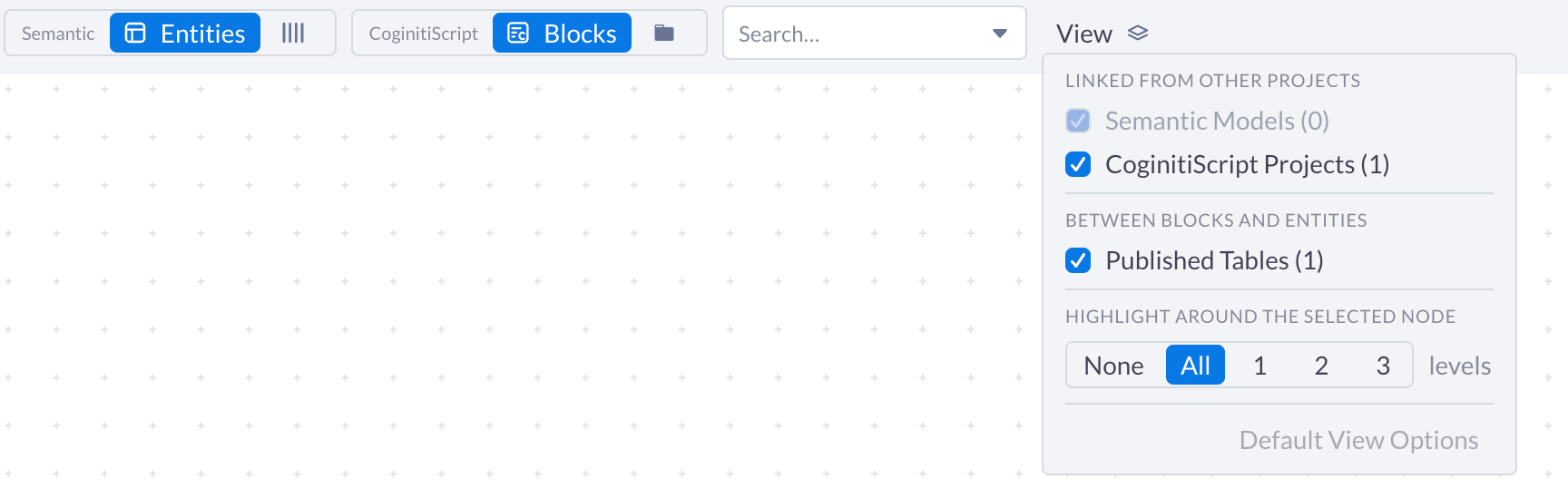
| Section | Item | Result |
|---|---|---|
| Linked from Other Projects | Semantic Models (n), CoginitiScript Projects (n) | Clear an item to remove the regions of that domain from the canvas. The home regions stay. |
| Between Blocks and Entities | Published Tables (n) | Clear it to remove the tables between the blocks and the entities. Then the edge goes directly from the block to the entity. |
| Highlight Around the Selected Node | None, All, 1, 2, 3 | Sets how many levels of connections the view highlights around the node in focus. None stops the highlight. |
Click Default View Options to set the values of a new tab again. The tab saves the values that you set.
Problems
When nodes have problems, the toolbar shows N problems. Click it to show only the nodes with problems and the nodes that they connect to. Click it again to show all nodes.
Step 5: Find and inspect a node
- Search. Type in the search field of the toolbar. Search finds cards, rows and the blocks in a package card. A block shows as
package.Block. When the canvas has the two domains, search shows the domain of each item. - Focus. Click a card, a row or the header of a frame. The view highlights the upstream and downstream nodes. A field traces through its table to the block that publishes the table.
- Select more than one card. Ctrl-click (Cmd-click on macOS) the cards, or Shift-drag a box around them. The side panel shows how many cards and regions you selected.
- Clear. Press
Esc, or click the empty canvas. - Context menu. Right-click a card, a row or a frame. The menu shows the region controls and the actions of the node.
The side panel shows the node in focus:
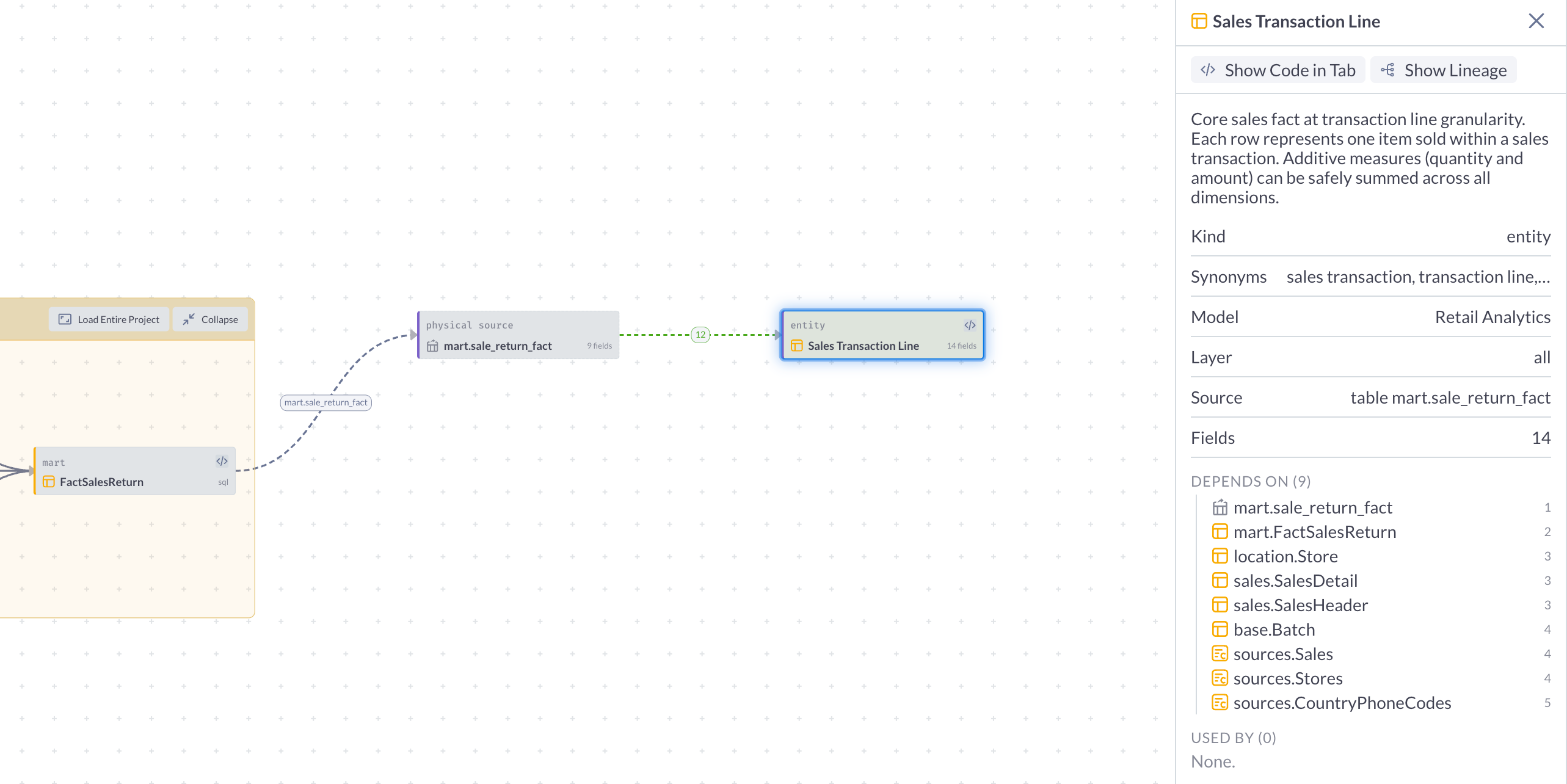
- The actions. A block, an entity, a dimension or a measure has Show Code in Tab and Show Lineage. A package has Show Lineage. A region has Reveal in Catalog, Show Lineage and the region controls.
- The attributes of the node. For example, a block shows its project, its source, what it publishes and its language. An entity shows its model, its layer, its source and its number of fields.
- The description and the synonyms of a semantic node, from the model.
- Depends On and Used By, in the two domains. The number next to each node is the number of links from the node in focus. A block shows as
package.Block, and a field shows asentity.field. - The problems of the node.
Reveal in Catalog selects the item in the catalog. For a version of a Project Hub project, the catalog shows the versions of the project first.
Step 6: Show more or less lineage
| Control | Result |
|---|---|
| Show Full Lineage | Loads the full home region and opens all regions that it reaches, three levels maximum. Refer to Show Full Lineage. |
| Show Initial Lineage | Shows the canvas that the tab opened with. Refer to Show Initial Lineage. |
| Zoom | Changes the zoom. Zoom to fit shows the full canvas. |
| Reset Layout | Makes a new layout of the canvas. Refer to Reset Layout. |
| Download | Saves the canvas as a PNG image. |
| Refresh | Loads the lineage again. The open regions and the focus stay. |
Coginiti keeps the positions of the cards. Expand and Collapse make a new layout of that region only. Load Entire adds only the new cards.
Show Full Lineage
Use Show Full Lineage to see the full pipeline in one step, without expanding each region yourself.
- Coginiti loads all nodes of the home region, as Load Entire does.
- Coginiti opens each collapsed region that the canvas connects to. Then it opens the regions that connect to these regions. It continues for a maximum of three steps from the start object.
- The regions that are already open stay open, with the nodes that they show.
A region that Show Full Lineage opens shows only the lineage that goes through it. To see all of its nodes, click Load Entire in its frame.
When more regions connect after three steps, they stay collapsed. A notice tells you how many regions stay collapsed. To see them, expand them yourself.
Show Full Lineage also opens the regions of a domain that you cleared in the View menu. They show when you select that item again.
Show Full Lineage makes a new layout of the full canvas. The cards that you dragged do not keep their positions. The node in focus stays. Refresh keeps the regions that Show Full Lineage opened.
Show Initial Lineage
Use Show Initial Lineage to go back to the canvas that the tab opened with:
- All regions collapse.
- The home region shows only the nodes around the start object. When the tab starts from a project or from the folder of a model, the home region shows all of its nodes.
- The cards that you opened with + N items fold again.
- Coginiti makes a new layout of the canvas, focuses the start object and zooms to fit.
The domain settings and the values of the View menu stay.
Show Initial Lineage is disabled when no region is open and the home region shows only the nodes around the start object. To put back the cards that you dragged, use Reset Layout.
Reset Layout
Use Reset Layout when you dragged cards or frames, or when expanding regions moved the cards apart.
Reset Layout removes all positions that the tab keeps, also the positions of the cards and the frames that you dragged. Then Coginiti makes a new layout of the cards on the canvas and zooms to fit.
Reset Layout does not load the lineage again. The open regions, the focus, the domain settings and the values of the View menu stay.
Troubleshooting
| Problem | Cause | What to do |
|---|---|---|
| A notice says that semantic entities are not shown | The semantic model does not compile | Repair the model. Then click Refresh. The view shows the CoginitiScript nodes until then. |
| A notice on a collapsed model says that its entities are not shown, because the CoginitiScript blocks that they read could not be resolved | Coginiti cannot resolve the packages of the project of the model, for example because its project.toml is not valid | Repair project.toml or the dependencies of the project. Then click Refresh. |
| A notice says that a region did not load | Coginiti cannot read the project or the model | Click Refresh. If the notice stays, open the project in the catalog and look for errors. |
| An entity has an error mark | The block reference of the entity is not correct | Read the message in the side panel. Refer to the troubleshooting table. |
| In an open model, every entity that reads a block has an error mark, and the side panel says that Coginiti cannot read the block | Coginiti cannot resolve the packages of the project of the model, for example because its project.toml is not valid | Repair project.toml or the dependencies of the project. Then click Refresh. The other entities of the model are not affected. |
An entity that reads a published table with table_name does not connect to the block | No entity of the model refers to that block with csl_block | Coginiti gets the publication of a block only from an entity with csl_block. |
| Coginiti asks for a connection when you open the lineage | A block has a :run_condition that depends on the platform | Select a connection. Next time, use Show Lineage in "<connection>". |
You can close a notice. Click Dismiss.