Create your first Project Review
Overview
Project Review is a collaborative feature in Coginiti Team that enables teams to ensure quality and consistency before publishing projects to the Project Hub. This guide demonstrates the process using a real-world scenario where a Retail analytics team is publishing a new version of their "retail" project.
Scenario: Publishing Retail Project v2.1
The Challenge: Your retail analytics team has developed enhanced sales forecasting models and customer segmentation analysis. The new version (v2.1) includes improved seasonal adjustments and new product category insights that need to be reviewed and published for organization-wide use.
Team Roles:
- Data Analyst: Created the enhanced retail analytics models
- Reviewer: Senior Analytics Lead who validates analytical approaches
- Publisher: Analytics Manager responsible for organizational standards
Project Review provides a structured workflow where:
- Data Analysts request review of their enhanced analytical projects
- Reviewers validate methodology, code quality, and analytical soundness
- Publishers ensure organizational standards are met and publish to Project Hub
- All team members collaborate through structured feedback and discussions
Step 1: Data Analyst Creates Project Review
Data Analyst: Requesting Review for Retail Project v2.1
Context: Data Analyst has enhanced the retail analytics project with new seasonal forecasting models and customer segmentation improvements. Data Analyst needs Reviewer to review the analytical approach publication.
Prerequisites
- Data Analyst has EDIT access to the "retail" project in workspace
- The project contains updated SQL scripts for sales forecasting and customer analysis
- Project manifest indicates this is version 2.1 with significant methodology improvements
Creating the Review Request
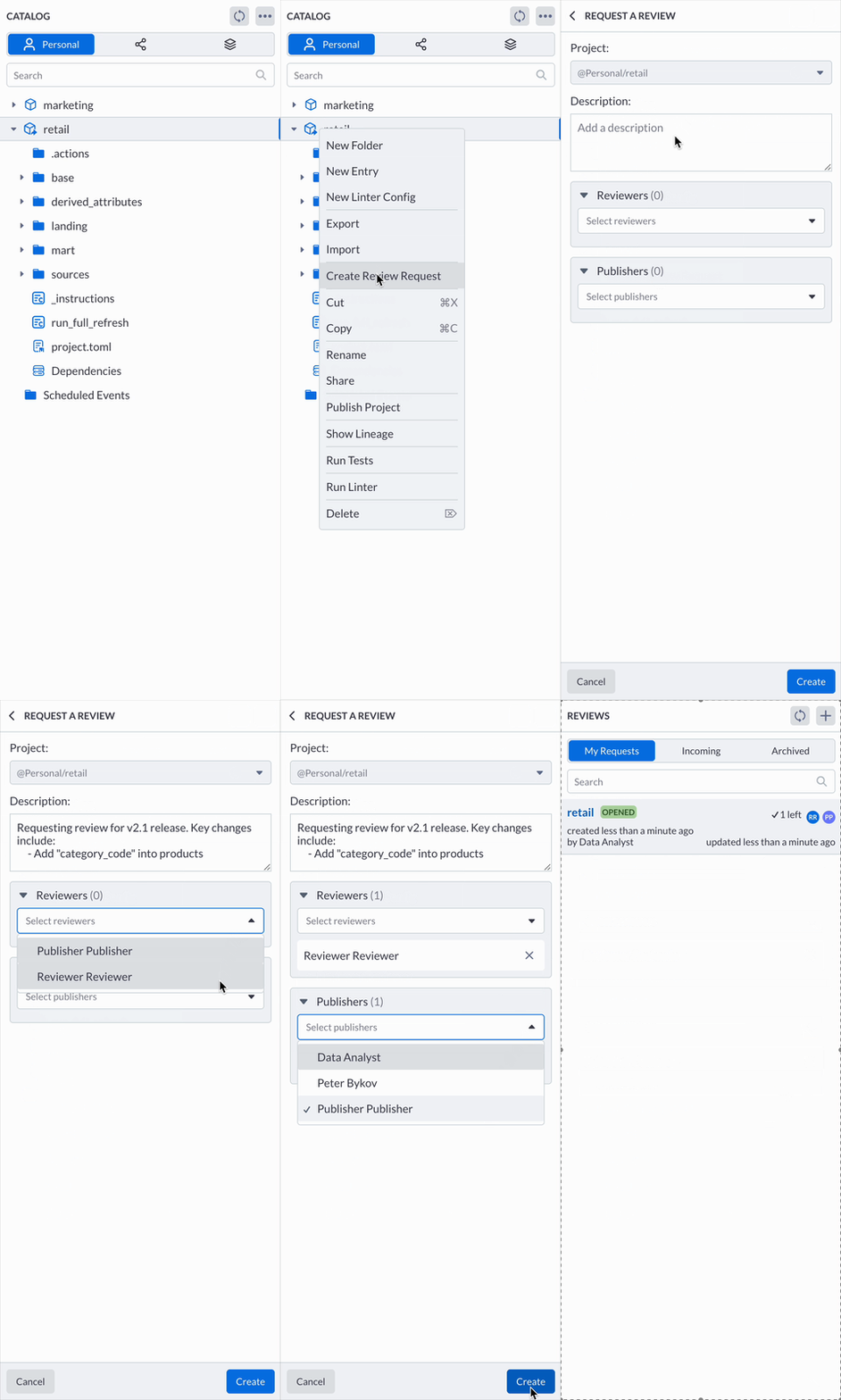
- Navigate to Project: Data Analyst opens the Catalog and locates "retail" in her workspace
- Initiate Review: Right-click on the project folder → select "Request Review"
- Fill Review Form:
- Description:
Requesting review for v2.1 release. Key changes include:
- Add "category_code" into products - Reviewer: Select "Reviewer"
- Publisher: Select "Publisher" (Analytics Manager)
- Description:
- Submit: Click "Create"
Best Practices for Reviews
- Write clear, specific descriptions explaining what needs to be reviewed
- Include context about the project's purpose and any specific areas of concern
- Select reviewers with relevant domain expertise
- Choose publishers who understand the organizational standards for Project Hub
Review Workflow and Statuses
Project reviews follow a defined lifecycle with three possible statuses:
OPENED
- The review is active and accepting feedback
- Reviewers can comment on code and provide feedback
- The author can update the project description and modify reviewer/publisher assignments
- Comments and discussions are ongoing
PUBLISHED
- The project has been approved and published to Project Hub by a publisher
- The review is considered complete and successful
- No further comments or changes can be made to the review
CLOSED
- The review has been closed without publishing (e.g., rejected, canceled, or withdrawn)
- No further comments or changes can be made to the review
- The project remains unpublished
Step 2: Reviewer Conducts Technical Review
Reviewer: Validating "review" project v2.1
Context: Reviewer receives a notification that Data Analyst has requested review of the retail analytics project. As responsible person, he needs to validate the analytical methodology and code quality.
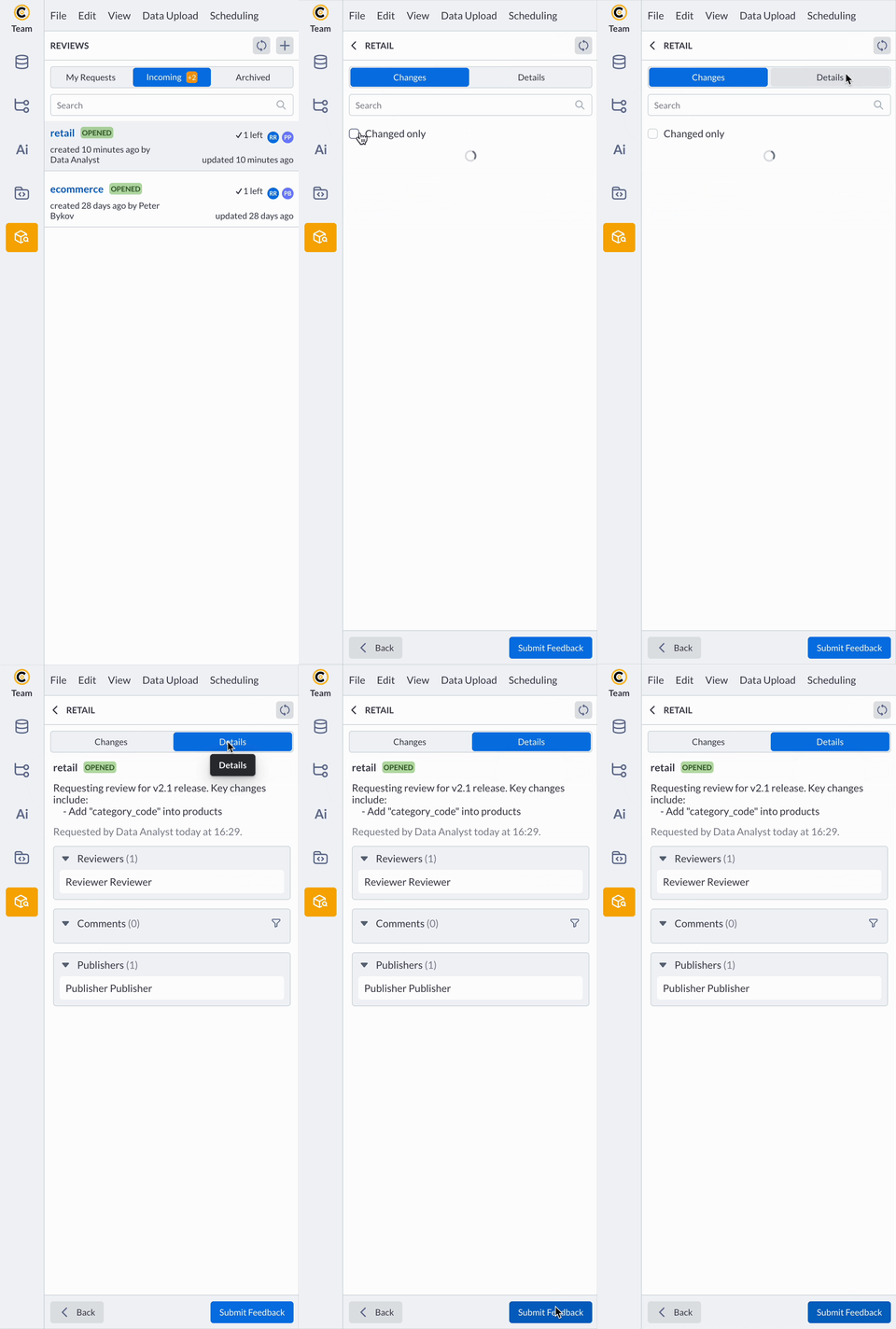
Accessing the Review
- Via Notification: Review clicks the notification link → navigates directly to the review
- Via Project Review Section: Alternatively, navigate to Project Review → filter for "retail"
- Review Overview: Reviewer sees:
- Project: "review"
- Author: Data Analyst
- Status: OPENED
- Description with focus areas highlighted
Review Interface for "retail" project
Project Details Panel
Reviewer reviews the project overview:
- Project Name: Retail Analytics v2.1
- Description: Sarah's detailed request with seasonal forecasting and segmentation changes
- Reviewers: List of assigned reviewers
- Comments: List of comments from reviewers
- Publishers: List of assigned publishers
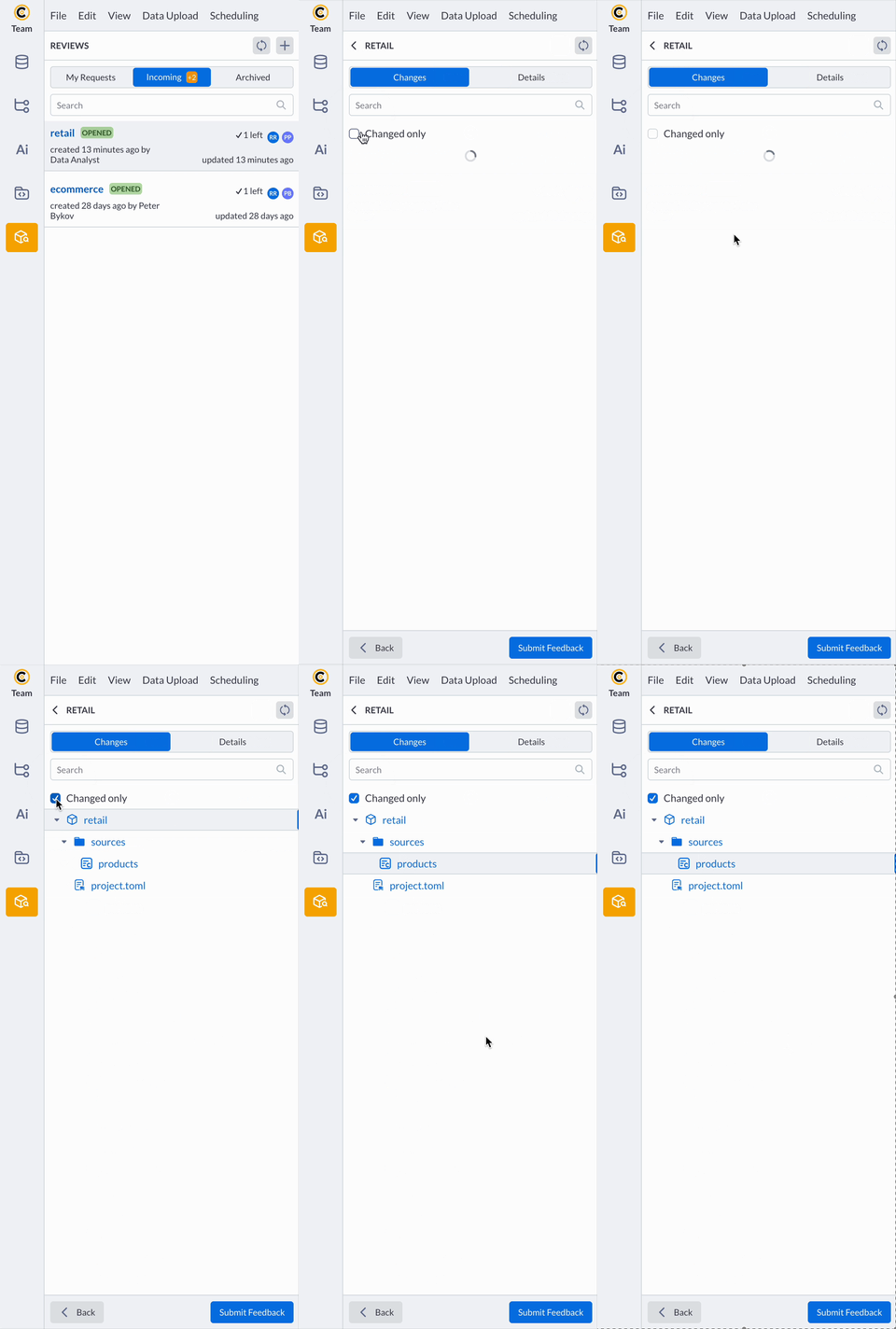
Examining Code Changes
File: sources/product
- Diff View: Side-by-side comparison showing v2.0 vs v2.1
- Key Changes: "product_code" field added
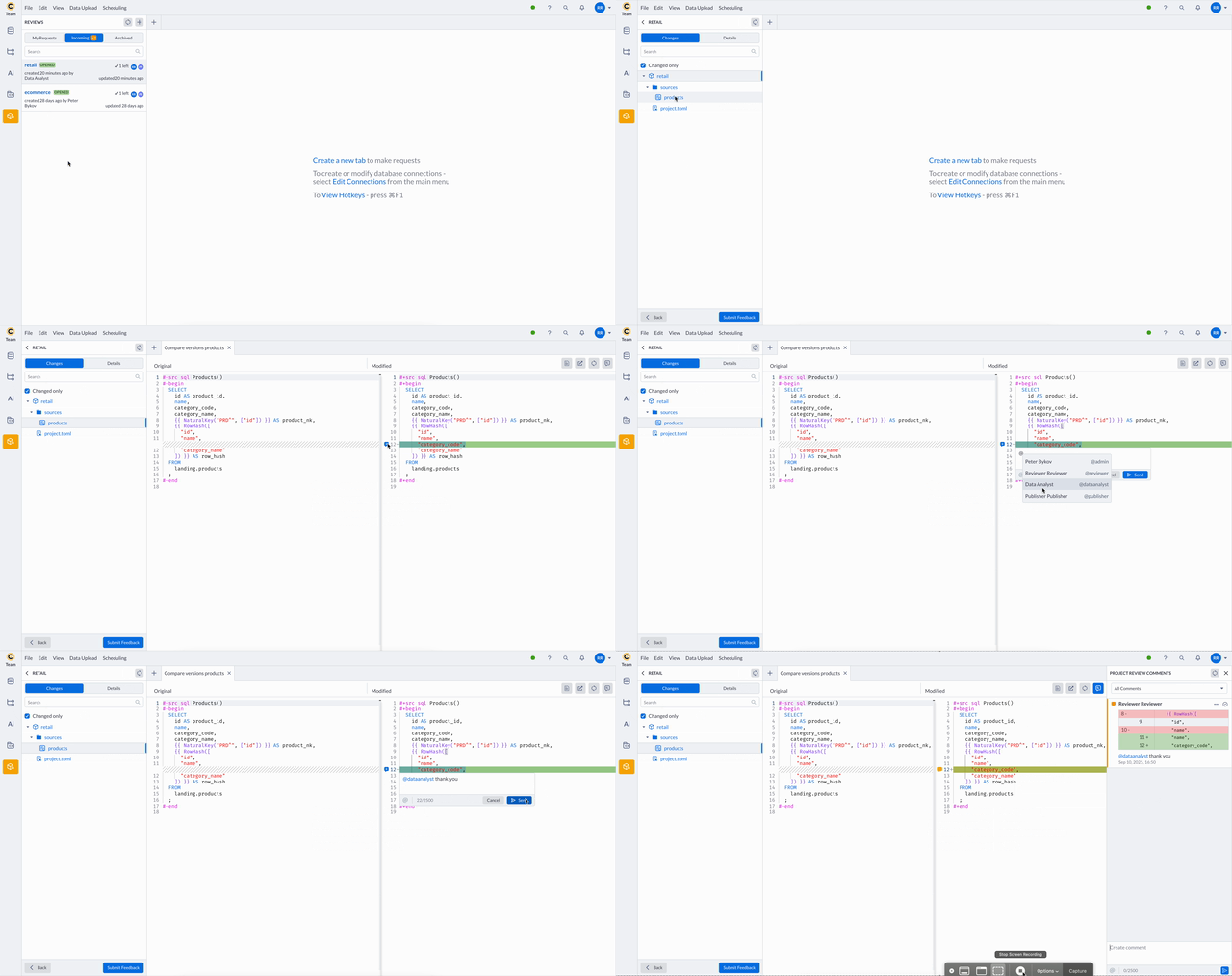
Providing Detailed Feedback
Line-Level Comments (Example)
File: sources/product, Line 12
Reviewer's comment:
@dataanalyst thank you
Reviewer Feedback Decision
After thorough review, Reviewer provides his assessment:
- Navigate to "review"
- Click on "Submit Feedback"
- Select Feedback Status: APPROVED
- Summary Comments:
Comprehensive review completed.
Recommend APPROVAL for publication. - Click on "Save" button
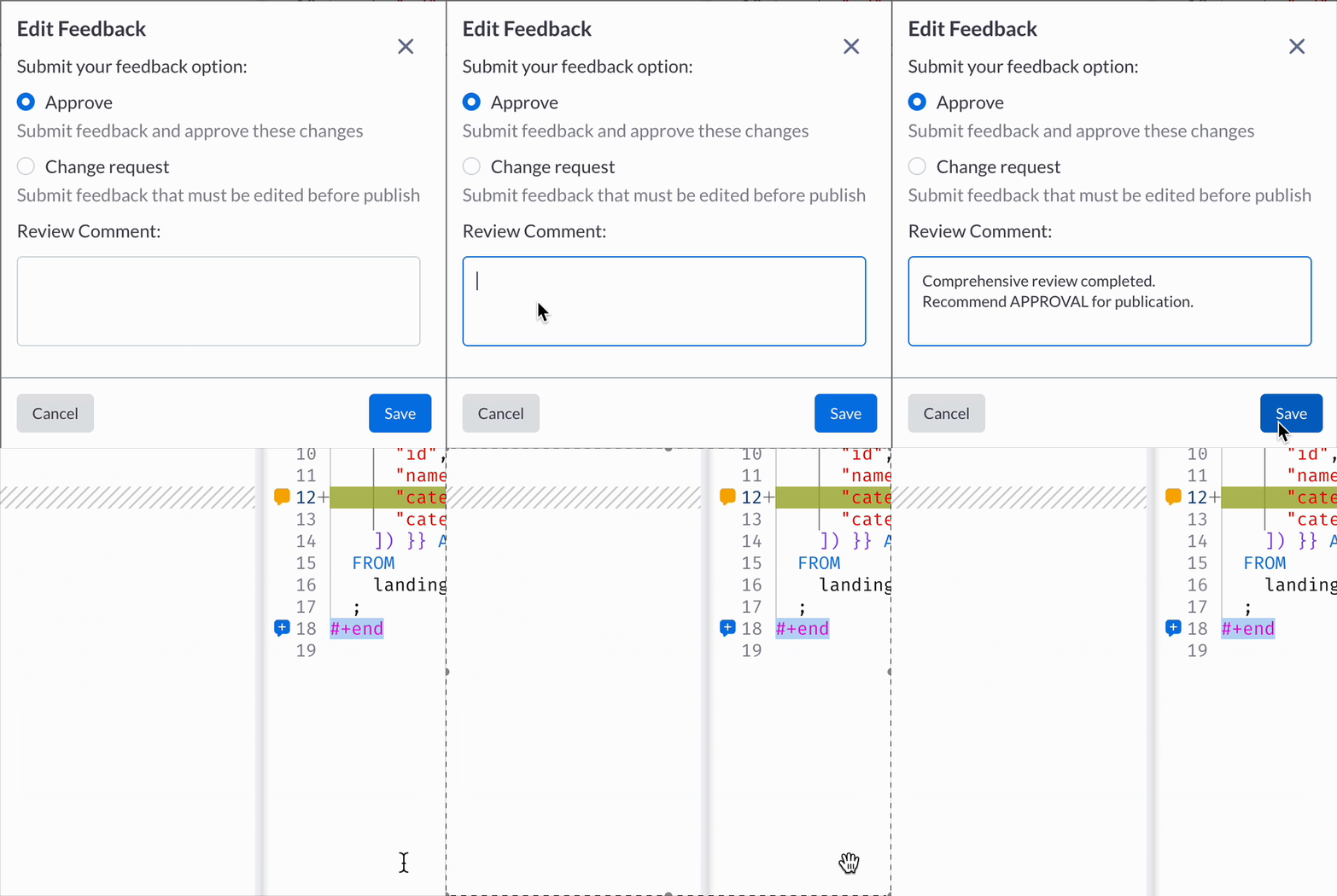
Providing Feedback
Reviewers can provide formal feedback with one of these statuses:
- APPROVED: The project meets standards and can be published
- CHANGES_REQUESTED: Issues identified that need to be addressed
- COMMENT: Feedback provided without explicit approval/rejection
Commenting System
The project review commenting system allows for detailed collaboration on code and project structure.
Types of Comments
Entity Comments
- Comments on entire entities
- Appear in the side panel without specific code snippets
- Useful for high-level feedback about file structure or purpose
Line Comments
- Comments on specific lines of code
- Include code snippets for context preservation
- Maintain reference to exact code state when commented
- Highlighted lines remain visible in the editor until modified
Creating Comments
Adding a Comment
- Navigate to the file you want to comment on
- For line comments: Click on the line number or select text
- For entity comments: Use the comment panel on the right
- Type your comment in the text editor
- Use @mentions to notify specific team members
- Click "Add Comment" to post
Comment Features
- Code Snippets: Line comments automatically include relevant code context
- Mentions: Use @username to notify specific users
- Threading: Reply to existing comments to create discussion threads
- Edit/Delete: Authors can edit or delete their own comments (only when review is open)
Comment Position Management
The system automatically manages comment positions when code changes:
- Line Content Changed: Comment unlinks from the line but remains in file comment list
- Line Merging: Comments unlink when lines are combined with content
- Line Movement: Comments move with lines when code is added/removed above
- Line Deletion: Comments become unlinked but remain accessible in comment list
Managing Comments
Filtering Comments
- Filter by comment status (Open/Closed)
- Search comments by content or author
- Navigate between different files' comments
Comment Navigation
- Click the "Open Comment" icon to jump to the relevant code location
- Use pagination to browse through large comment lists
- Comments remain accessible even if the associated code changes
Step 3: Publisher Approves and Publishes
Publisher: Publishing "retail" project v2.1
Context: Publisher receives notifications that Reviewer has approved the review. As publisher, they need to verify organizational standards are met and publish the project to Project Hub.
Publisher Review Process
- Review Feedback: Publisher examines Reviewers's approval and detailed comments
- Verify Standards: Ensures project meets organizational requirements:
- Code documentation standards
- Naming conventions for retail analytics
- Data governance compliance
- Performance benchmarks for production use
- Business Validation: Confirms retail business logic aligns with company standards
Publishing the Retail Project
-
Access Review: Publisher navigates to the "retail" project review
-
Review Summary:
- ✅ Reviewer: APPROVED
- ✅ All comments addressed
- ✅ No blocking issues identified
-
Click "Publish": Initiates the publishing workflow
-
Fill Publishing Form:
Publishing Form Details
-
Project Folder Name:
core/retail -
Project Name:
retail(from manifest) -
Version Number:
2.1 -
Location:
Project Hub > core > retail -
Release Notes:
# Retail project v2.1 Release Notes

## Improvements
- Add "product_code" for products
-
-
Publish Project: Click "Publish" to complete the process
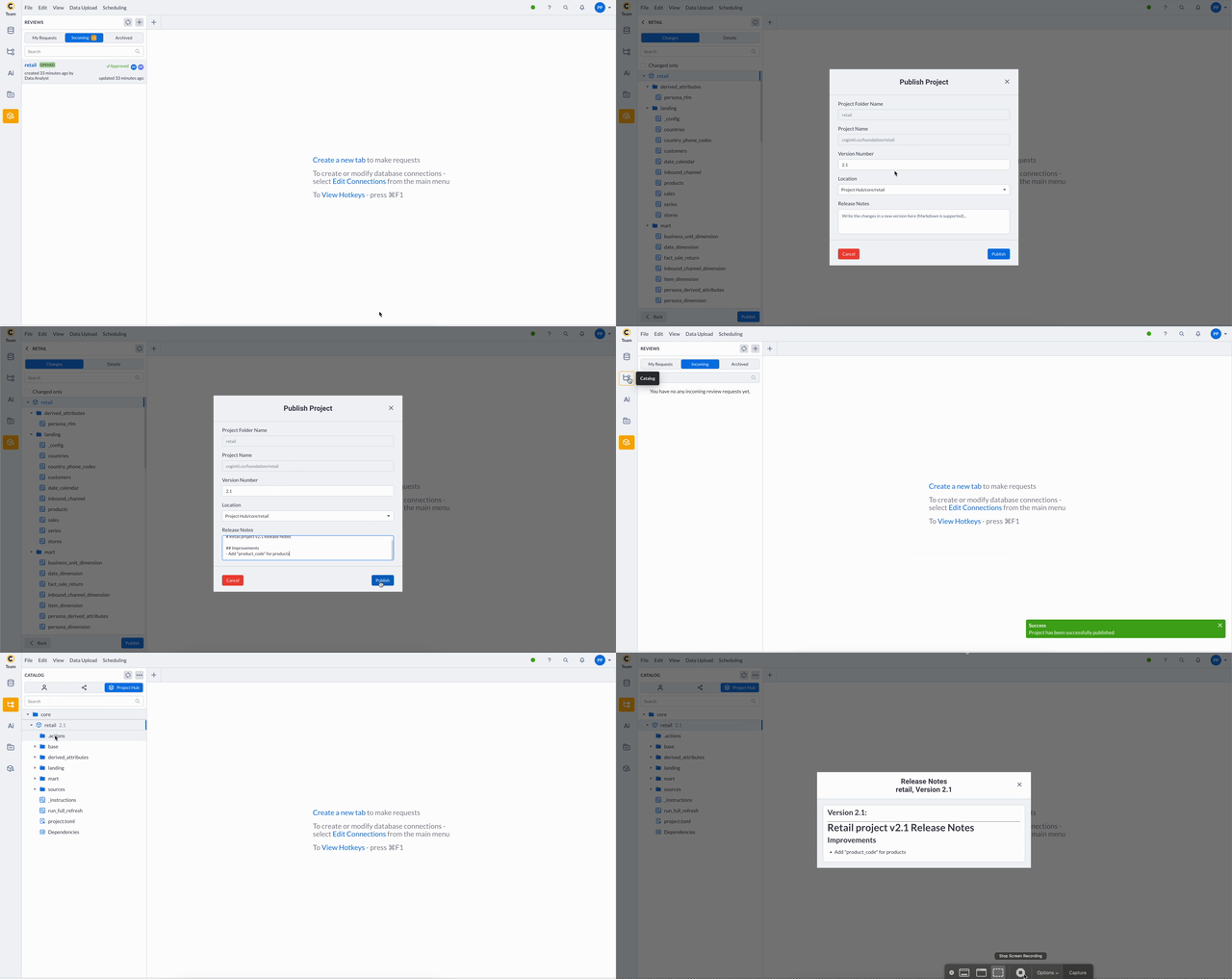
Post-Publication Results
After successful publication:
- Project Hub Location:
core > retail - Version: Listed as v2.1 with full release notes
- Access: Available to all analytics team members for creating working copies
- Notifications: Data Analyst and Reviewer receive publication confirmation
- Historical Record: Complete review discussion preserved for future reference
Publisher Responsibilities
Publisher ensures:
- Organizational Standards: Code quality, documentation, naming conventions
- Data Governance: Compliance with data usage policies
- Business Alignment: Analytical methods align with retail business practices
- Production Readiness: Performance and scalability for organization-wide use
- Version Control: Proper semantic versioning and release documentation
Project Hub Integration
Project Hub vs. Review Workspace
- Review Workspace: Development/staging area where reviews happen
- Project Hub: Production area for approved, published projects
- Published projects become read-only templates for organization use
Access After Publishing
Once published:
- Projects appear in Project Hub with proper versioning
- Users can create working copies from published projects
- Original review discussion remains for historical reference
- Publishers and reviewers receive notifications of successful publication
Access Management and Permissions
Review Participation Rules
- Authors: Can comment, update descriptions, modify reviewer/publisher lists
- Reviewers: Can comment, provide feedback status, decline assignments
- Publishers: Can comment, provide feedback, and publish projects
- All participants can create discussion threads and use mentions
Permission Requirements
- Create Review: Requires VIEW access to the source project
- Comment: Limited to assigned reviewers, publishers, and project author
- Read Comments: Same as commenting permissions
- Publish: Only assigned publishers can publish projects
Security and Access Control
- Comments require proper catalog permissions on the underlying entities
- Concurrent modification protection prevents conflicting changes
- Permission checks occur at both comment and project levels
- Users can only modify their own comments
Notifications and Communication
Notification Types
- Reviewer Assignment: Notifies when assigned to review a project
- Publisher Assignment: Notifies when assigned as a publisher
- Comment Mentions: Notifies when mentioned in comments (@username)
- Feedback Submission: Notifies relevant parties when feedback is provided
- Project Published: Notifies when project is successfully published
- Review Declined: Notifies when reviewers decline assignments
Notification Features
- Direct navigation links to specific comments and reviews
- Persistent notifications that remain even if content is deleted
- Real-time updates for active collaborations
- Integration with user preference settings
Troubleshooting and Common Issues
Review Creation Issues
- Permission Denied: Ensure you have VIEW access to the project
- No Reviewers/Publishers Available: Check that selected users have appropriate access levels
Comment Issues
- Cannot Comment: Verify you are an assigned reviewer, publisher, or project author
- Comment Position Lost: This is normal when code changes; comments remain in file list
- Cannot Edit Comment: Comments can only be edited by their authors when review is open
Publishing Issues
- Cannot Publish: Ensure you are assigned as a publisher and the review is still open
- Version Conflicts: Check for conflicting version numbers in Project Hub
- Location Access: Verify you have appropriate permissions for the target Project Hub location
Integration with Existing Workflows
Catalog Integration
- Project reviews integrate seamlessly with existing catalog permissions
- Projects can be reviewed regardless of their catalog workspace location
- Published projects appear in Project Hub with proper organizational structure
Workflow Integration
- Reviews can be part of formal development processes
- Integration with scheduled events and automated workflows
- Supports continuous integration/deployment patterns for analytical projects
Team Collaboration Patterns
- Use for peer code review before production deployment
- Quality assurance checkpoints for critical analytical projects
- Knowledge sharing and mentoring opportunities
- Documentation of analytical decisions and trade-offs